Appearance
Using the AI Assistant
Ask your roster plain-English questions and get instant answers — no reports to run, no filters to set.
What this is
The AI Assistant is a chat window built into Manage Roster. It reads your live schedule data and answers questions in plain English. It's like asking a knowledgeable colleague — except it knows your entire roster and is available 24/7.
Where to Find It
Look for the AI / Chat button in the left sidebar or the bottom-right corner of the screen. Click it to open the chat panel.
📸 Screenshot: AI chat button in the sidebar/nav
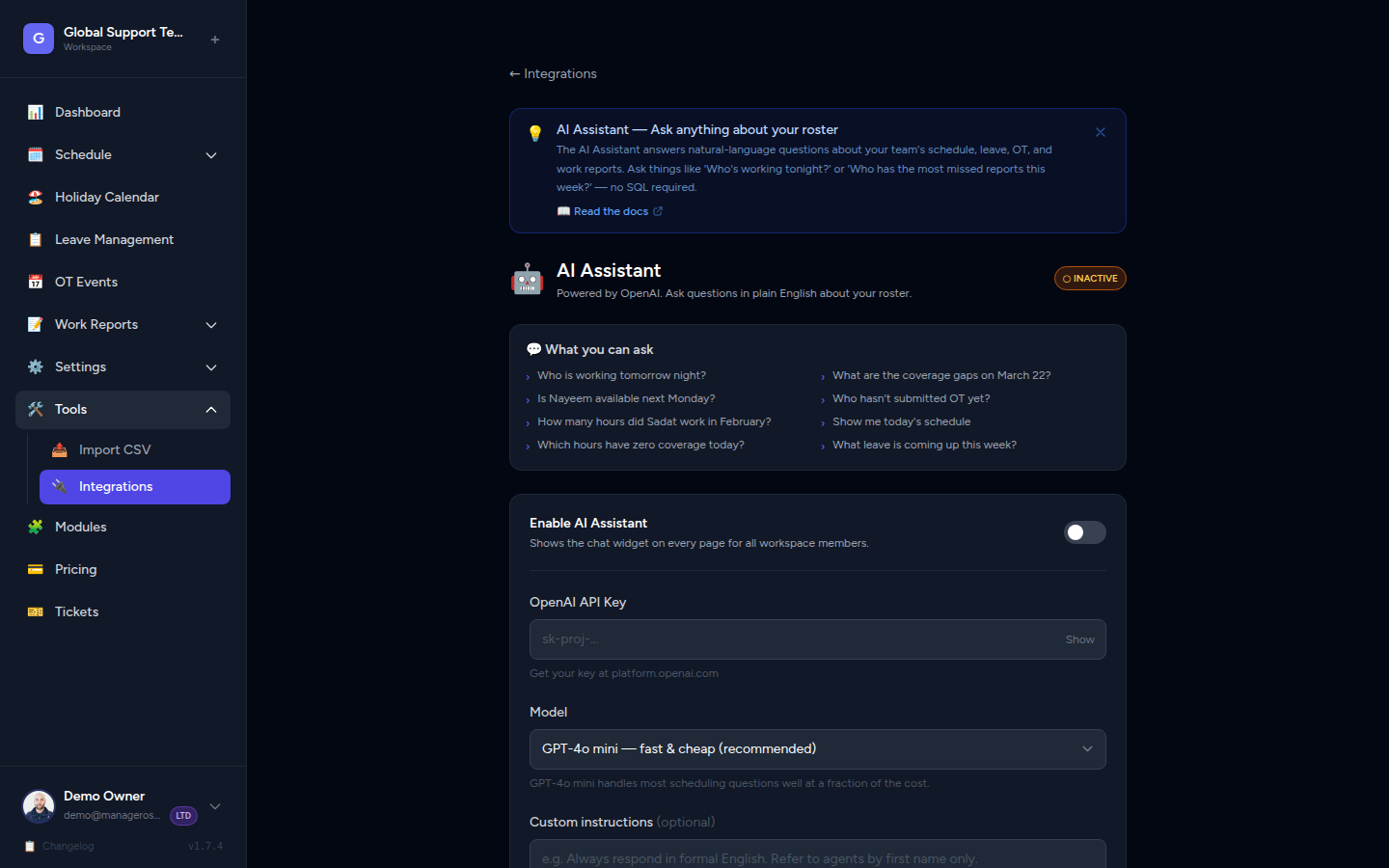
If you don't see the button, the AI hasn't been enabled for your workspace yet. Ask your Owner to set it up — it takes about two minutes. See AI Setup (Admin).
What You Can Ask
The AI understands six types of roster questions. Here's exactly what each one covers, with real examples you can copy-paste.
📅 Today's / Tomorrow's Schedule
Find out who's on duty right now or on any upcoming date.
Example questions:
- "Who's working today?"
- "Show me tomorrow's schedule"
- "Who's on shift on Monday?"
- "Give me the schedule for March 15"
📸 Screenshot: AI response showing today's on-duty agents
👥 Agent List
Get a headcount or a full list of your team.
Example questions:
- "How many agents do we have?"
- "List all active agents"
- "Who's on the team?"
🕳️ Coverage Gaps
Find out which hours have no one scheduled — before it becomes a problem.
Example questions:
- "Are there any coverage gaps today?"
- "Which hours are uncovered this week?"
- "Is there a gap on Friday afternoon?"
📸 Screenshot: AI listing uncovered hours for a given day
Catch gaps early
Ask about coverage gaps at the start of your week. The AI will flag any hours with zero coverage so you can fill them before the shift starts.
🗓️ Agent Availability
Check whether a specific agent is available — or find out who's off on a given date.
Example questions:
- "Is Kasun available on Friday?"
- "Who's off next week?"
- "Is Janine working on March 20?"
- "Who's on leave tomorrow?"
⏱️ Overtime (OT) Status
See who worked overtime and how many OT hours have been logged.
Example questions:
- "Who worked OT this month?"
- "Show OT hours for March"
- "How much overtime has Kasun done this week?"
📸 Screenshot: AI displaying OT hours per agent
📊 Monthly Stats
Get a summary of hours worked for any agent or your whole team, for any month.
Example questions:
- "How many hours did Janine work in February?"
- "Monthly summary for March"
- "Give me a breakdown of hours for the whole team last month"
Sample Conversation
Here's what a quick morning check-in might look like:
You: Who's working today?
AI: Today (Monday, March 3) you have 4 agents on shift: Kasun (09:00–17:00), Janine (10:00–18:00), Rafi (14:00–22:00), and Nadia (22:00–06:00).
You: Any coverage gaps?
AI: Yes — there's a gap from 06:00 to 09:00 (3 hours) with no agent scheduled.
You: Is anyone available to cover that gap?
AI: Based on their availability, Nadia's shift ends at 06:00 and Kasun starts at 09:00. No agent is currently scheduled for that window. You may want to assign someone manually.
What the AI Cannot Do
The AI is read-only. It can look things up but it cannot make changes. Specifically, it cannot:
- ❌ Book or approve leaves
- ❌ Modify the schedule or shift times
- ❌ Add, remove, or edit agents
- ❌ Send messages or notifications to your team
- ❌ Access anything outside your roster data (emails, other apps, etc.)
For any of those actions, use the corresponding section of Manage Roster directly.
Why read-only?
Keeping the AI as a read-only tool means it can never accidentally change your schedule. Your data is safe — the AI is just a fast way to look things up.
Tips for Better Answers
The AI works best when your questions are specific. Here's how to get the most useful responses:
| ✅ Do this | ❌ Instead of this |
|---|---|
| "Is Janine working on March 15?" | "Is she working next week?" |
| "Show OT hours for February 2026" | "Show recent OT" |
| "Who's on shift between 10pm and 6am today?" | "Who works nights?" |
| "Coverage gaps this Monday" | "Any gaps soon?" |
In short: Use full names, exact dates, and specific time ranges when you can. The more specific you are, the more precise the answer.
Error Messages
"AI Assistant is not enabled"
📸 Screenshot: "AI not enabled" message in the chat panel
This means your workspace hasn't been connected to OpenAI yet. The AI requires a one-time setup by your Owner.
👉 Share the AI Setup (Admin) guide with them — it takes about 2 minutes.
"Something went wrong. Please try again."
A temporary error. Wait a moment and resend your question. If it keeps happening, your admin may need to check that the API key is still valid.
The AI gives a vague or unhelpful answer
Try rephrasing with a more specific date or name. For example, instead of "Who's working soon?", ask "Who's working on Wednesday March 5?"