Appearance
Monthly Statistics
The Monthly Statistics section gives you a full breakdown of how your team performed this month — hours worked, overtime logged, leave taken, days present, and more. It's the go-to place before making decisions about scheduling, OT approval, or leave allocation.
Getting to Monthly Statistics
You can reach Monthly Statistics two ways:
From the dashboard:
- Open the Manager Dashboard (the default page after logging in).
- Scroll down until you see the Monthly Stats panel — it's labelled with the current month name, e.g. February 2026.
From the main navigation:
- Click 📅 Monthly in the top-right navigation pills on the dashboard header.
No separate page needed
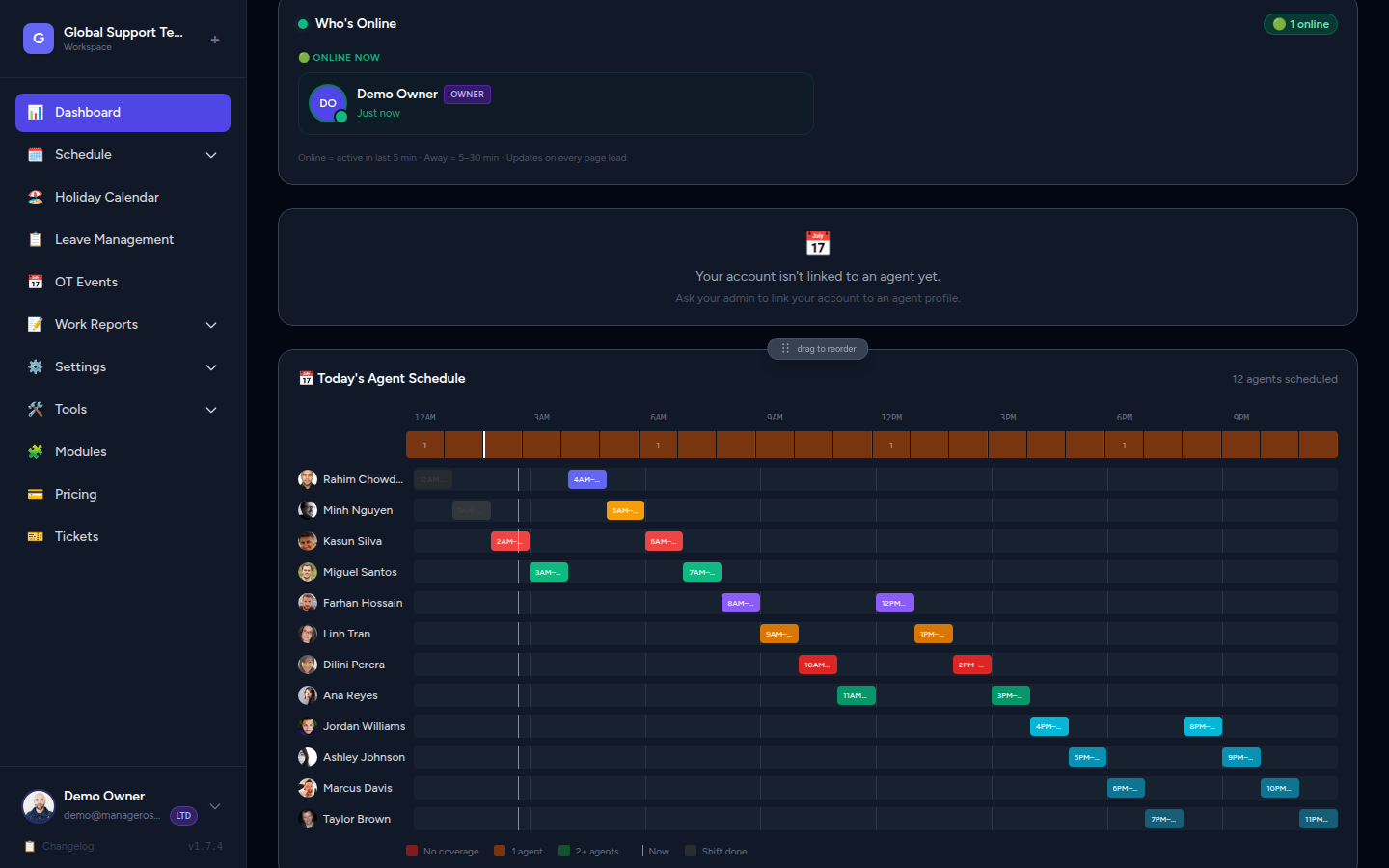
Monthly Statistics live directly on the Manager Dashboard — you don't need to navigate away. Just scroll down past the Gantt chart.
The Summary Cards
At the top of the Monthly Stats section, six cards give you the month's headlines:
| Card | What it means |
|---|---|
| Working Days | Total number of agent-working-day combinations scheduled this month |
| OT Hours | Total overtime hours across the entire team this month |
| Avg Daily Coverage | On average, how many of the 24 hours per day have had at least one agent — calculated up to today, not projected forward |
| Full Coverage Days | Days where every single hour (all 24) had at least one agent |
| Leave Days | Total approved leave days taken this month |
| Avg Agents / Hour | On hours that are covered, how many agents are on duty on average |
Target full coverage
A healthy team typically aims for Full Coverage Days to be as high as possible. If the number is low compared to days elapsed, check the Gantt chart for recurring gap patterns.
Reading the Agent Stats Table
Below the summary cards is a table listing every agent in your team. Each row is one agent; the columns are their key metrics for the month.
📸 Screenshot: Agent stats table
Columns Explained
| Column | What it shows |
|---|---|
| Agent | The agent's name, colour dot, and avatar |
| Days | The number of days the agent has been scheduled to work this month |
| OT hrs | Overtime hours logged by this agent (Owner view only — see note below) |
The table is sorted from the agent with the most days worked to the least, making it easy to spot who is carrying the most load.
Column totals appear in the table footer — useful for a quick whole-team count.
OT visibility
The OT hrs column and the OT breakdown are only visible to Owners. Managers with Admin or Member roles will see their own OT hours in the summary card, but not the full team breakdown in the table.
Understanding Each Metric
Scheduled Hours
Reflects the shifts that were put into the roster for that agent this month. It does not account for last-minute absences unless those absences replaced scheduled shifts.
OT Hours
Each OT entry on the roster counts as one hour of overtime. An agent with 4 OT hrs had four individual overtime hour-slots logged this month.
Leave Days
The count of approved leave days taken within the current month. If a leave period spans two months, only the days that fall within the current month are counted.
Days Present
The Days column in the table shows scheduled working days. Use this alongside leave data to understand actual attendance versus planned attendance.
OT Breakdown by Agent (Owner only)
Below the table, Owners see an OT Breakdown section — a set of agent pills showing each agent's total OT hours for the month, sorted from highest to lowest.
📸 Screenshot: OT breakdown pills
Use this list to:
- Identify agents who may be overloaded with overtime
- Spot agents who haven't taken any OT and may be available to help fill gaps
- Inform conversations about workload balance
Changing the Month
The Monthly Stats section always opens on the current month. To view a previous month:
- Click the ‹ (left arrow) next to the month name at the top of the section to go back one month.
- Click the › (right arrow) to move forward.
Future months
Future months will show little to no data unless shifts have already been scheduled ahead of time. The Avg Daily Coverage card only counts days up to today's date, so it will be blank for fully future months.
Using Stats to Plan OT and Leave
Monthly Statistics are most useful when making scheduling decisions:
Planning Overtime
- Check the OT Hours summary card to see total OT this month.
- Look at the OT Breakdown pills (Owner) to see which agents are already carrying heavy OT.
- Prefer agents with fewer OT hours when filling upcoming gaps — it distributes load more evenly and avoids burnout.
Planning Leave Allocation
- Check the Leave Days summary card for overall leave consumption.
- Cross-reference with the Who's Out Today panel on the main dashboard to understand leave clusters.
- If multiple agents have taken leave this month, use the Upcoming panel to see whether more leave is incoming before approving additional requests.
Month-end review
Running this report near the end of each month helps you compare actual OT and leave against your team's capacity, so you can adjust the next month's roster before it's published.