Appearance
Integrations
Manage Roster can connect to external services to unlock additional features. This page explains what's currently available, how to set it up, and how to manage the connection.
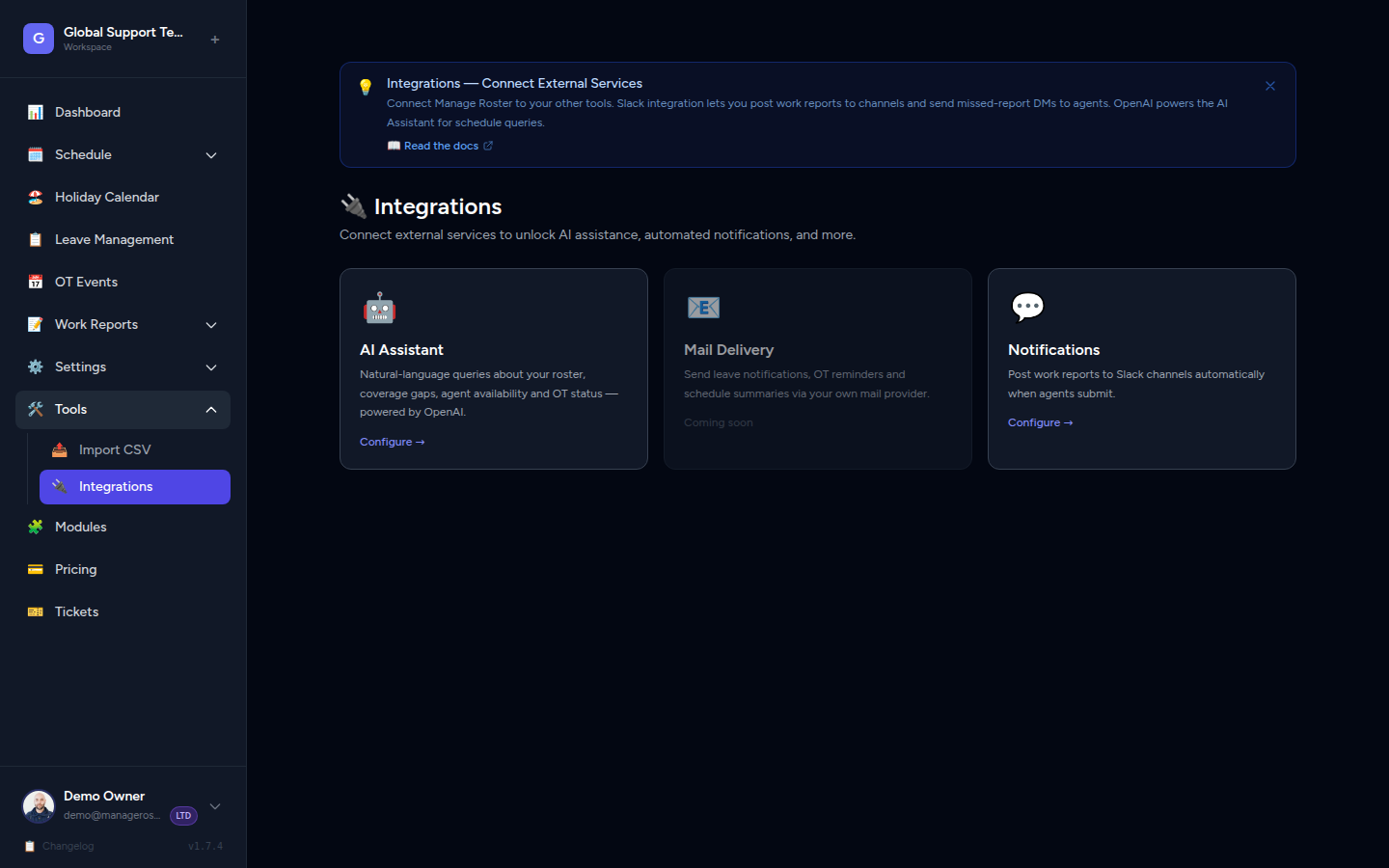
Available Integrations
| Integration | What it does |
|---|---|
| OpenAI | Powers the built-in AI Assistant — helps you plan schedules, answer questions about your roster, and surface insights. |
| Slack | Auto-posts agent work reports to your Slack channels when submitted. Supports per-template channel targeting, agent @mentions, and missed-report DM/email alerts. |
Navigating to Integrations
- Click Settings in the left navigation.
- Select Integrations from the Settings menu.
📸 Screenshot: Settings menu with "Integrations" option highlighted
You'll see a list of available integrations and their current status (enabled or not configured).
OpenAI Integration
What It Does
Connecting OpenAI gives you access to the AI Assistant inside Manage Roster. The assistant can help you:
- Draft and review shift schedules.
- Answer questions about coverage gaps or team availability.
- Quickly summarise roster data in plain language.
The assistant uses your own OpenAI API key, so usage is billed directly to your OpenAI account — Manage Roster doesn't charge anything extra for this feature.
Getting an OpenAI API Key
If you don't have a key yet:
- Go to platform.openai.com and sign in (or create an account).
- Navigate to API Keys in the left sidebar.
- Click Create new secret key and give it a name (e.g.
Manage Roster). - Copy the key — you won't be able to see it again after closing the dialog.
WARNING
Keep your API key private. Anyone with it can use your OpenAI account and run up charges. Don't share it or paste it anywhere outside of the Integrations settings page.
Adding Your API Key
- On the Integrations page, find the OpenAI integration card.
- Click Configure or Set Up.
- Paste your API key into the API Key field.
- Choose your preferred model:
- gpt-4o-mini — faster and more cost-efficient; great for day-to-day assistant use.
- gpt-4o — more capable; better for complex questions and detailed analysis.
- Click Save to connect.
📸 Screenshot: OpenAI integration card showing the API key field and model selector
TIP
Not sure which model to pick? Start with gpt-4o-mini — it handles most scheduling questions well and costs significantly less per use. You can switch to gpt-4o any time.
Enabling or Disabling the Integration
Once your API key is saved, you can toggle the integration on or off without losing your key:
- On the Integrations page, find the OpenAI card.
- Use the Enable / Disable toggle to turn the AI Assistant on or off.
When disabled, the AI Assistant feature is hidden from the app but your API key remains saved — just re-enable it when you're ready.
📸 Screenshot: OpenAI integration card with the enabled/disabled toggle highlighted
Changing Your Model
- On the Integrations page, open the OpenAI settings.
- Select a different model from the Model dropdown.
- Click Save to apply the change.
Removing the Integration
To disconnect OpenAI and clear your API key:
- On the Integrations page, open the OpenAI settings.
- Click Remove or Clear API Key.
- Confirm when prompted.
Your key is permanently cleared from Manage Roster. The AI Assistant will be disabled until a new key is added.
INFO
Removing the integration in Manage Roster doesn't delete the key from your OpenAI account. If you want to revoke it entirely, go to platform.openai.com → API Keys and delete it there.
Slack Integration
Connect your Slack workspace to automatically post work reports to channels the moment agents submit them. Each report template can target a different channel, agents can be @mentioned by their Slack Member ID, and missed-report alerts can be delivered via Slack DM, email, or both.
→ Full Slack Integration guide
Quick start
- Go to Settings → Integrations → Slack and click Connect Slack.
- Open any Work Report Template, choose a Slack channel.
- Optionally add each agent's Slack Member ID in Agent Management for @mentions.
- Done — reports post automatically on submission.
What It Does
Connecting Slack brings your Work Reports activity directly into your team's Slack workspace:
- Channel posts — every time an agent submits a Work Report, a summary is automatically posted to the Slack channel you configure for that template.
- DM alerts — if an agent hasn't submitted their report 3 hours after their shift ends, the Manage Roster bot sends them a direct message reminder.
- @mentions — agents with a Slack Member ID set are @mentioned in channel posts, so the right person is always credited and notified.
Connecting Slack
- Go to Settings → Integrations.
- Find the Slack card and click Connect Slack.
- Approve the permissions on Slack's OAuth screen.
- You'll be redirected back to Manage Roster with the integration showing Active.
📸 Screenshot: Slack integration card showing the "Connect Slack" button
Reconnect required for DM alerts
DM alerts require the im:write permission. If you originally connected Slack before this feature was added, you must disconnect and reconnect to grant this scope — otherwise Slack DM alerts will not be delivered.
Configuring Channel Posts
Channel posting is set per Work Report Template:
- Go to Settings → Work Report Templates and click Edit on any template.
- Scroll to the Slack Notification section at the bottom.
- Select the Slack channel where submissions for this template should be posted.
- Click Save Template.
The bot must be in the channel first
The channel dropdown only shows channels the Manage Roster bot is a member of. In Slack, run /invite @Manage Roster in any channel that isn't appearing in the list.
Configuring Alert Notifications
- Go to Settings → Integrations → Slack.
- Scroll to the Missed Report Alerts card.
- Choose Slack DM, Email, or Both.
- Click Save Preference.
Agents must have a Slack Member ID set in Agent Management for DM delivery to work.
Managing the Connection
From the Slack Integration page you can Pause, Resume, or Disconnect at any time. Pausing stops all posts and alerts without losing your channel or alert configuration.
For complete setup instructions, troubleshooting tips, and a step-by-step checklist, see the Slack Integration guide.
More Integrations Coming Soon
The Integrations section is actively growing. Future additions may include calendar sync, payroll system connections, and HR platform integrations. Keep an eye on this page and the product changelog for updates.