Appearance
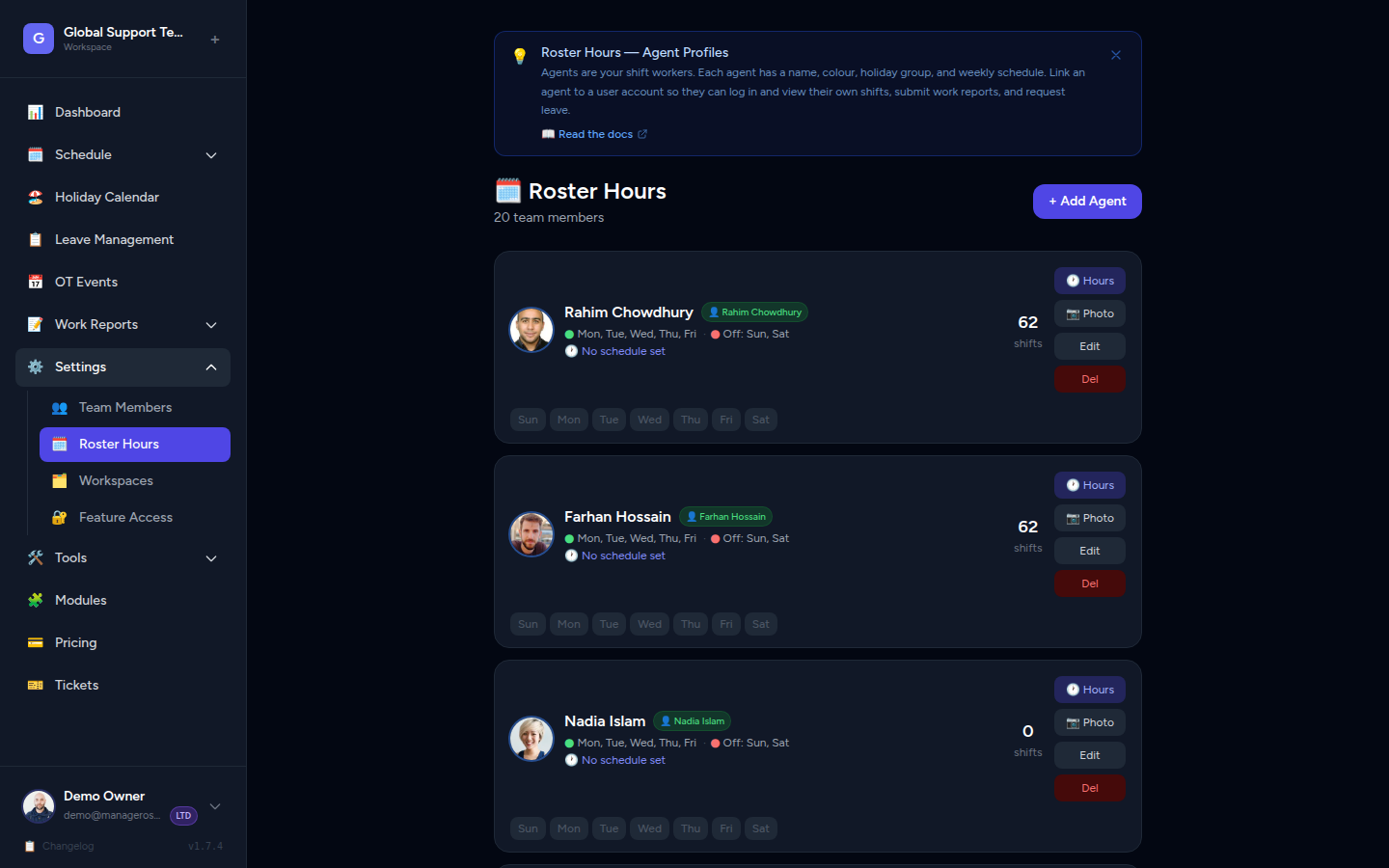
Set Working Hours
Configure each agent's regular working schedule — the days and hours they're expected to be on shift.
What Are Working Hours?
Working hours define when an agent is scheduled to work — their shift start time, shift end time, and the days of the week they're active. Once saved, Manage Roster automatically generates that agent's schedule entries in the Monthly Calendar and Day View.
INFO
Working hours are set per agent, per workspace. If your team has agents across different workspaces, each workspace maintains its own schedule independently.
Step 1 — Open Agent Settings
- Go to Agents in the left sidebar.
- Find the agent whose hours you want to configure.
- Click the agent's name or the Edit button to open their profile.
- Select the Working Hours tab.
📸 Screenshot: Agent profile with Working Hours tab selected
Step 2 — Set Shift Start and End Times
- In the Start Time field, enter the time the agent's shift begins (e.g. 9:00 AM).
- In the End Time field, enter the time their shift ends (e.g. 5:00 PM).
TIP
Use 12-hour format with AM/PM, or 24-hour format — the app accepts both. For example, 17:00 and 5:00 PM are the same thing.
Overnight Shifts
If an agent works across midnight (e.g. 10:00 PM – 6:00 AM), set the end time past midnight. The system handles overnight overflow automatically.
Step 3 — Select Working Days
Below the time fields you'll see checkboxes for each day of the week:
| Checkbox | Meaning |
|---|---|
| Mon | Agent works on Mondays |
| Tue | Agent works on Tuesdays |
| Wed | Agent works on Wednesdays |
| Thu | Agent works on Thursdays |
| Fri | Agent works on Fridays |
| Sat | Agent works on Saturdays |
| Sun | Agent works on Sundays |
Check every day the agent is regularly on shift. Unchecked days are treated as off days.
📸 Screenshot: Day-of-week checkboxes
Step 4 — Save
Click the Save (or Update) button at the bottom of the form.
Once saved:
- The agent's schedule is automatically generated for the coming period.
- Their shift blocks will appear as colored pills on the Monthly Calendar.
- Their name will appear in the relevant hour rows on the Day View.
- Days not checked will show as an OFF Day banner on the Day View.
TIP
No manual slot-filling needed. Saving working hours is all it takes — the calendar and day view update themselves.
Editing Hours for Multiple Agents
There is no bulk-edit screen. To update several agents at once:
- Navigate to Agents.
- Open the first agent → Working Hours tab → make your changes → Save.
- Use your browser's Back button or the breadcrumb to return to the Agents list.
- Repeat for each agent.
TIP
If your team runs identical shifts (e.g. all agents on 9 AM – 5 PM, Mon–Fri), copy the same values across each agent profile. This keeps the schedule clean and consistent.
Frequently Asked Questions
What happens if I change an agent's hours mid-month?
The system regenerates the schedule from the point of change. Past schedule entries are not affected.
Can an agent have different hours on different days?
Not directly in the Working Hours tab — one start/end time applies to all checked days. For agents with split schedules, use the Day View to manually adjust specific slots.
Where do I see the result?
Check the Monthly Calendar for a month-level overview or the Day View for hour-by-hour detail.