Appearance
Work Reports
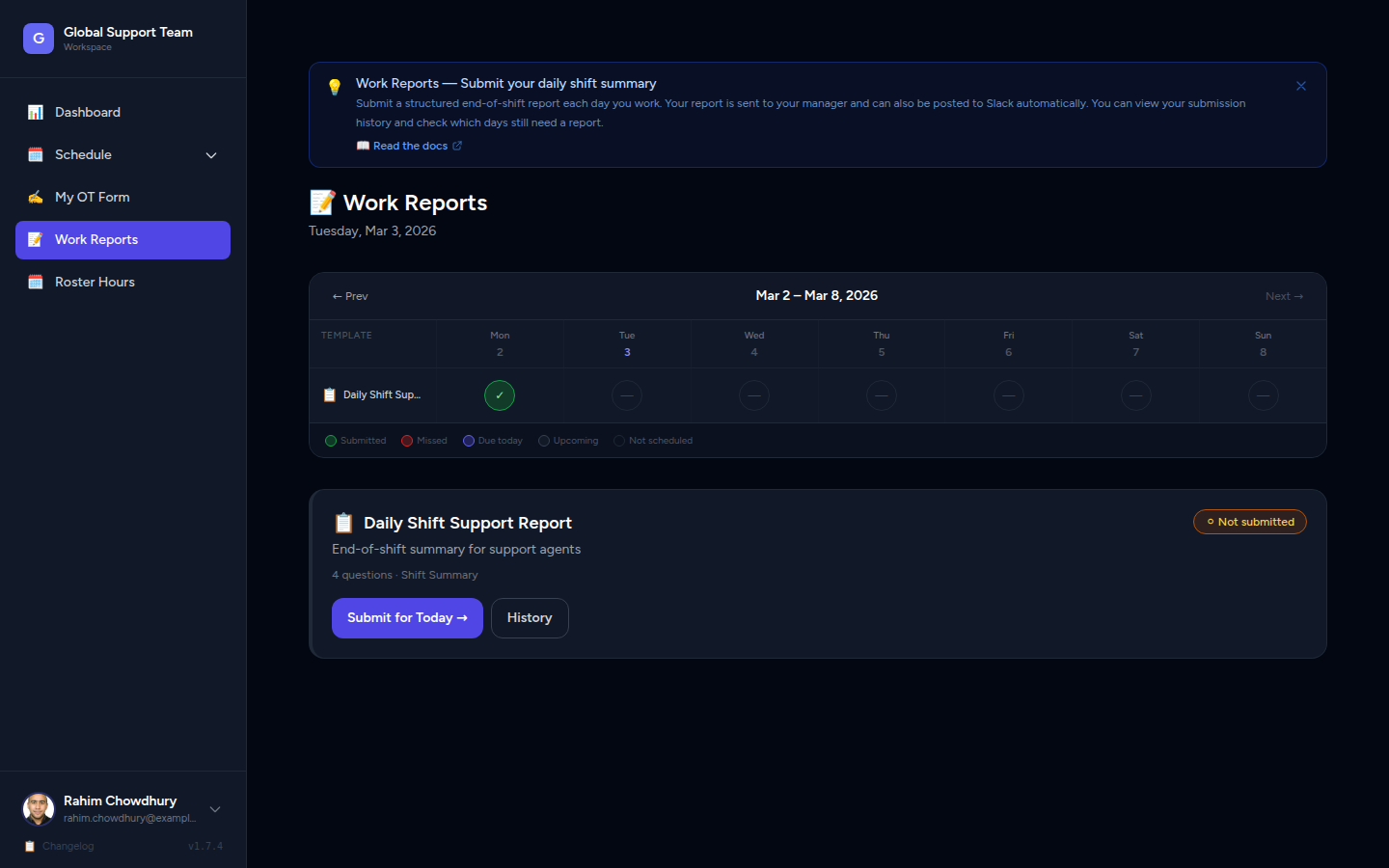
Work Reports let you submit a structured end-of-shift summary every day you work. Your admin can review your reports, track progress, and spot blockers early — keeping the whole team informed without the need for extra meetings or ad-hoc messages.
Who can do this?
The Work Reports feature is available to all Agents (shift workers). You can only see and manage your own reports — admins manage the full team view separately.
Work Reports must be enabled by your workspace admin before the section appears in your sidebar. If you don't see it, ask your admin to enable it in Workspace Modules.
What Is a Work Report?
A Work Report is a daily record of what you worked on during your shift. You fill it in at the end of each working day and submit it so your manager can review it. Think of it as a lightweight standup — in written form, tied to a specific date.
Each report captures:
- Date — the date your shift took place
- Hours Worked — how many hours you worked that day
- Tasks Completed — a summary of what you accomplished
- Blockers / Issues — anything that slowed you down or is still unresolved (optional)
- Notes — any additional context you want to share (optional)
Once submitted, reports move through a simple status lifecycle so you and your admin always know where things stand.
Report Status Lifecycle
Every Work Report has a status that indicates where it is in the review process:
| Status | Meaning |
|---|---|
| Draft | Auto-saved as you fill in the form. Only you can see it. You can edit it freely. |
| Submitted | You've sent the report to your admin. It is now locked — you cannot edit it. |
| Reviewed | Your admin has opened and reviewed the report. No further action needed from you. |
Save as Draft, Submit when ready
Work Reports auto-save to Draft as you type. You don't need to rush — come back and finish it before the end of your day. Once you click Submit, the report is locked and sent to your admin.
You cannot edit a submitted report
Once you click Submit, your report is locked. If you made an error, contact your admin — they can leave review notes but the report content itself remains as submitted.
Accessing Work Reports
- Log in to Manage Roster.
- In the left sidebar, click Work Reports (shown as My Reports in the navigation).
- You'll see your list of past and current reports.
📸 Screenshot: Sidebar showing "Work Reports / My Reports" link highlighted
Don't see "Work Reports" in the sidebar?
Your workspace admin may not have enabled this feature yet. Ask them to go to Settings → Workspace Modules and toggle Work Reports on.
Viewing Your Reports List
The My Reports page shows all your reports in a table with the following columns:
- Date — the shift date the report covers
- Hours Worked — the number of hours you logged
- Status — a colour-coded badge: Draft (grey), Submitted (blue), Reviewed (green)
- Tasks Preview — a short excerpt from your Tasks Completed field, so you can quickly identify reports at a glance
📸 Screenshot: My Reports list showing multiple rows with status badges and task previews
Reports are ordered by date with the most recent at the top. You can scroll back through all your historical submissions.
Creating a New Work Report
Step 1 — Open the New Report form
- Go to Work Reports in the sidebar.
- Click the New Report button (top-right corner of the page).
- The report form opens.
📸 Screenshot: Empty "New Work Report" form
Step 2 — Fill in the Date
- Click the Date field.
- Use the date picker to select the date of your shift.
- By default, today's date is pre-filled.
- If you are submitting a report for a previous day (e.g., you forgot yesterday), select the correct date.
📸 Screenshot: Date picker open on the report form
Submitting for a past day
If you missed submitting your report yesterday, you'll likely have received an email reminder. Use the date picker to choose the correct past date and submit it as normal.
Step 3 — Enter Hours Worked
- Click the Hours Worked field.
- Type the number of hours you worked during that shift (e.g.
8,7.5,6).- Decimal values are accepted (e.g.
7.5for seven and a half hours). - Enter only the hours you were actively working — not break time unless your contract specifies otherwise.
- Decimal values are accepted (e.g.
Step 4 — Describe Tasks Completed
- Click inside the Tasks Completed text area.
- Write a clear summary of the work you did during the shift.
- Be specific enough that your admin understands what was accomplished, but you don't need to write an essay. Bullet points work well here.
Example:
- Handled 32 inbound customer support tickets (Level 1 queue)
- Escalated 4 tickets to Level 2 for billing issues
- Reviewed and updated the FAQ article on password resets
- Attended daily team standup at 09:00
📸 Screenshot: Tasks Completed field with example bullet-point content
Step 5 — Add Blockers / Issues (Optional)
If anything prevented you from working efficiently — a system outage, a missing resource, an unclear requirement — document it in the Blockers / Issues field.
- Click the Blockers / Issues text area.
- Describe the issue briefly, including any steps you already took to address it.
- If there were no blockers, leave this field empty.
Example:
CRM was down from 13:00–14:30 (ticket #4521 raised with IT).
Could not access the reporting module — awaiting permissions from admin.
Why bother?
Logging blockers is the fastest way to get help. Admins can see unresolved blockers when they review your report and follow up directly — no need to chase via chat or email.
Step 6 — Add Notes (Optional)
Use the Notes field for anything that doesn't fit the other sections — general observations, feedback, schedule comments, or team updates.
- Click the Notes text area.
- Type any additional context you want to share.
Example:
Finished early on the ticket queue today — team did great.
Suggest increasing weekend staffing for the APAC region based on today's volume.
Step 7 — Save as Draft or Submit
At the bottom of the form you have two options:
| Button | What it does |
|---|---|
| Save Draft | Saves your progress without submitting. You can return and continue editing later. |
| Submit | Finalises and sends the report to your admin. The report is locked — you cannot edit it after this. |
📸 Screenshot: Form footer showing "Save Draft" and "Submit" buttons
Think before you submit
Double-check your date, hours, and tasks before clicking Submit. Once submitted, you cannot make changes.
Editing a Draft Report
As long as your report has a Draft status, you can come back and edit it at any time.
- Go to Work Reports in the sidebar.
- Find the report in your list — it will show a Draft badge.
- Click the row or the Edit icon to open the form.
- Make your changes.
- Click Save Draft to save your progress, or Submit when you're ready.
📸 Screenshot: My Reports list with a Draft row highlighted, Edit icon visible
Submitting a Draft Report
When you're ready to send your report to your admin:
- Open the Draft report (click its row in the list).
- Review all fields and make any final edits.
- Click Submit.
- A confirmation dialog may appear asking you to confirm — click Yes, Submit.
- The report status changes from Draft to Submitted immediately.
📸 Screenshot: Submit confirmation dialog
Your admin will be notified and can now review the report.
Understanding Your Report History
The My Reports list is your personal archive of every shift you've documented. You can:
- Browse past reports — scroll or paginate through all your submissions
- Check review status — see whether your admin has marked a report as Reviewed
- Re-read past entries — click any row to open the full report in read-only mode
- Spot missing dates — if a date is missing from your list, you may have forgotten to submit a report for that day
📸 Screenshot: My Reports list spanning several weeks, showing a mix of Draft, Submitted, and Reviewed statuses
Use your history as a personal log
Your Work Report history is a reliable record of your own productivity. If you ever need to recall what you were working on during a specific week, your submitted reports are the place to look.
Missed Report Alerts
If you forget to submit a report for a day you were scheduled to work, Manage Roster will alert you automatically — 3 hours after your shift ends.
You may receive notifications through:
- In-app banner — a yellow warning bar at the top of every page when you log in
- Slack DM — if Slack is connected and your admin has configured it
- Email — if your admin has set the alert preference to Email or Both
📸 Screenshot: Yellow in-app banner — "⚠️ You missed your [Template] report for [Date]. Submit now →"
Use the banner shortcut
Clicking Submit now → in the banner takes you straight to the report form for that date — no need to navigate manually.
Alert timing is tied to your shift
Alerts fire 3 hours after your specific shift end time, not at a fixed midnight. A 9 pm–4 am shift triggers an alert at 7 am the next day.
For full details on how alerts work, when they fire, and how to manage them, see the dedicated Missed Report Alerts guide.
Frequently Asked Questions
Can I submit more than one report per day?
No. Each date can have only one report. If you need to correct or add information after submitting, contact your admin — they can leave a review note on your behalf.
What happens if I submit for the wrong date?
Contact your admin as soon as you notice. They can review the report and add a note to clarify. Unfortunately, the date field on a submitted report cannot be changed — you'll need to create a new report for the correct date and ask your admin to disregard the incorrect one.
I don't see the "New Report" button. What's wrong?
This usually means the Work Reports feature is not enabled in your workspace. Ask your workspace admin to enable it in Settings → Workspace Modules.
Can I see my admin's review notes?
Yes. When your admin marks a report as Reviewed and adds notes, those notes will be visible when you open the report in read-only mode.
Will I lose my draft if I close the browser?
No. Reports auto-save as you type. Your draft is stored on the server — not just in your browser — so it will be there when you return.
I submitted a report but my admin hasn't reviewed it yet. Should I follow up?
Reports with Submitted status are in your admin's review queue. There is no set review deadline — follow your team's internal processes for response times. You can check the status badge in your reports list at any time.
Tip: Writing a Good Work Report
A helpful report doesn't need to be long. Aim for clarity over length.
Do:
- Use bullet points for tasks — easier to scan
- Be specific: "Resolved 14 support tickets in the billing queue" is more useful than "Handled tickets"
- Always document blockers, even if they were minor
- Submit on the same day if possible — your memory is freshest right after the shift
Avoid:
- Vague entries like "Did work" or "Usual tasks"
- Leaving the Tasks Completed field empty
- Waiting days before submitting — older reports are harder to recall accurately
📸 Screenshot: Side-by-side comparison of a vague vs. a well-written Tasks Completed entry
Weekly Calendar
The My Reports page includes a weekly status strip at the top that gives you an at-a-glance view of your report submissions for the current week — so you can immediately see which days you're behind on.
📸 Screenshot: Weekly status strip showing Mon–Sun cells with green, amber, grey, and blue indicators
Reading the Strip
Each cell represents one day of the week (Monday through Sunday) and shows a colour-coded status:
| Indicator | Colour | Meaning | Action |
|---|---|---|---|
| ✅ | Green | Report submitted | Click to view the submitted report |
| ⚠️ | Red / Amber | Report missed | Click to open the submit form for that date |
| — | Grey | Not scheduled that day | No action needed |
| 🔵 | Blue | Future date — not yet due | No action needed |
Spot missed days instantly
Any red/amber cell means you have a pending report. Click it directly from the strip to jump straight to the submission form — no searching through the list required.
Navigating Between Weeks
Use the navigation controls above the strip to move between weeks:
← prev week | Mon 24 Feb – Sun 1 Mar 2026 | next week →- ← prev week — step back to the previous week to check historical gaps
- Current week label — shows the date range of the week currently displayed
- next week → — step forward (future weeks show all cells in blue until dates become due)
📸 Screenshot: Week navigation arrows with current week label in the centre
Only your scheduled days show a status
Days where you were not scheduled to work always appear grey, regardless of the week you're viewing. If a day looks grey but you believe you were scheduled, contact your admin to review your working-days configuration.
Related
- Work Reports — Admin Guide — How admins enable and manage Work Reports
- Missed Report Alerts — Full details on how and when missed-report notifications fire
- User & Agent Accounts — Linking your login account to your agent profile
- Workspace Setup — General workspace configuration
- Agents — How agents are set up and managed by admins