Appearance
Manager Dashboard Overview
The Manager Dashboard is your command centre for the day. It gives you a live picture of who's working, who's out, where coverage is thin, and what's coming up — all without digging through schedules or asking your team.
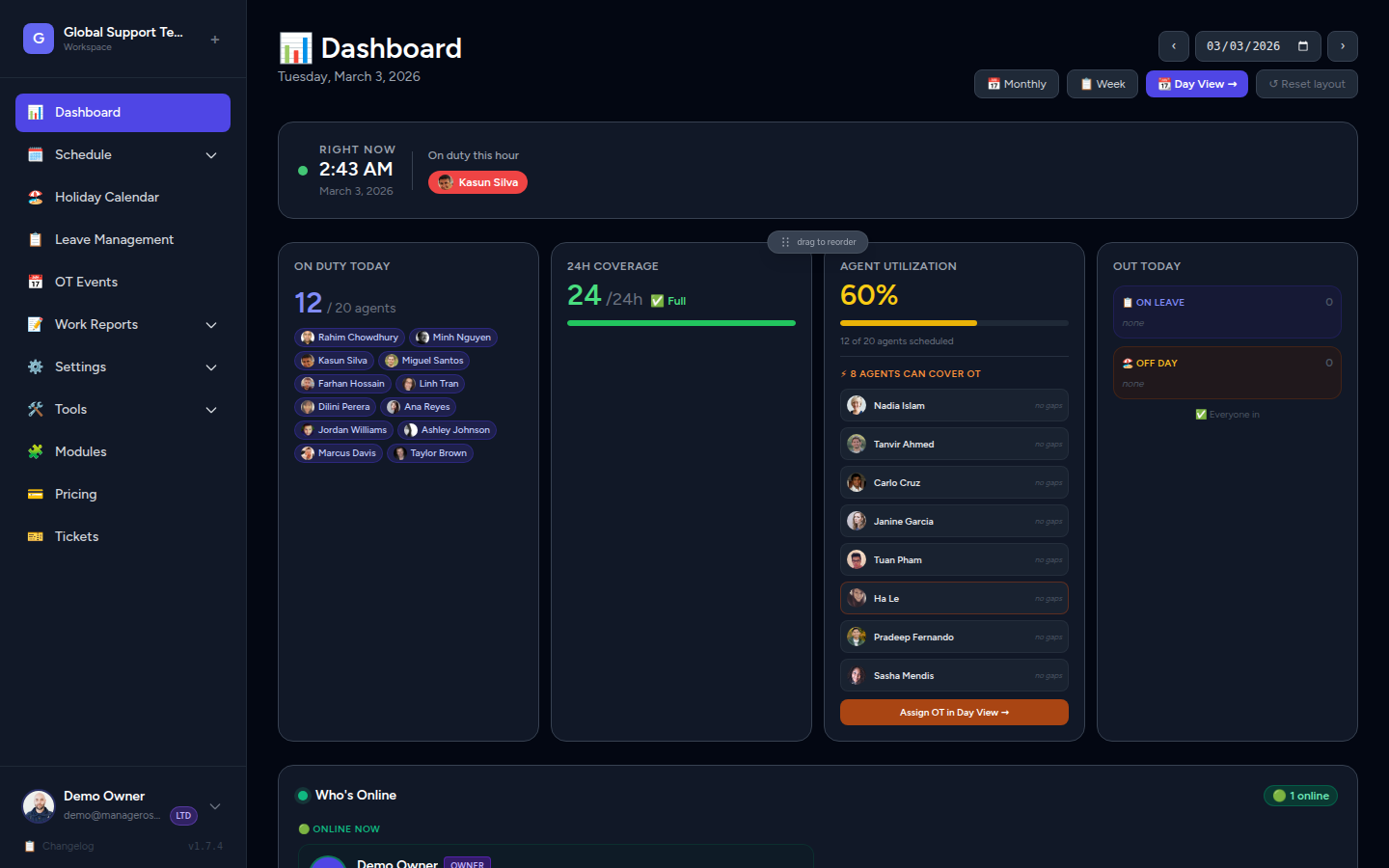
What the Dashboard Shows at a Glance
When you open the dashboard, six summary cards greet you at the top:
| Card | What it tells you |
|---|---|
| On Duty Now | How many agents are in their shift right now |
| 24h Coverage | The percentage of today's 24 hours that have at least one agent scheduled |
| Gaps Today | Hours with zero agent coverage — the number you want to keep at zero |
| Out Today | Agents on approved leave or a public holiday today |
| OT Hours | Overtime hours logged for the current month |
| Utilization | The share of your active roster scheduled at least once today |
Read the colours
The On Duty Now card turns red when nobody is currently working, amber when only one agent is on, and green when two or more are covered. A quick glance tells you if you need to act.
Reading the Gantt Chart
The Gantt chart sits in the middle of the dashboard and shows your entire team's schedule across a 24-hour timeline for the selected day.
📸 Screenshot: Gantt chart
Coverage Bar (top row)
The first row is the Coverage Bar — a summary of every hour in the day:
- 🟥 Red — no agents scheduled (a gap)
- 🟨 Amber — only one agent on duty
- 🟩 Green — two or more agents on duty
Scan this bar first. Any red or amber segments need attention.
Agent Rows
Below the Coverage Bar, each agent who is scheduled today gets their own row:
- Agent name and colour dot appear on the left.
- Shift blocks are drawn as coloured bars spanning the agent's working hours.
- Completed shifts (hours that have already passed) appear greyed out so you can focus on what's still ahead.
Rows are sorted by earliest shift start, so the first agent in the list is the earliest starter.
The "Now" Line
A vertical indigo line marked ▶ NOW moves in real time across the chart, showing the current hour. Use it to see at a glance who is still to come on and who has already finished.
Today only
The Now line only appears when you are viewing today's date. It disappears when you navigate to past or future dates.
Navigating to Another Day
Use the ‹ and › arrows in the top-right header to move one day back or forward. Click the Today button to jump back to the current date, or use the date picker to jump directly to any date.
Identifying Coverage Gaps
A gap is any hour with zero agents scheduled. Gaps appear as:
- A red segment in the Coverage Bar
- A red-tinted column in the Gantt timeline backdrop
- A count on the Gaps Today summary card at the top
The Gaps Today card also lists the exact time ranges — for example, 2:00 AM – 4:00 AM — so you know precisely when coverage breaks down.
Act on gaps early
Gaps during peak hours can directly impact your customers. Review gaps first thing in the morning and use the Day View to assign cover or log OT.
Seeing Who's on OT Today
The Who's Out Today panel (further down the dashboard) has three groups:
- On Leave — agents on approved leave, with leave type and return date
- On Holiday / Day Off — agents with a public holiday or regular off day
- On OT Today — agents who have an overtime shift today, shown with their OT hour count
The OT group makes it easy to see who is already carrying extra load before you ask anyone to take on more.
Quick Actions from the Dashboard
You don't need to leave the dashboard for routine tasks:
| Action | How |
|---|---|
| View an agent's schedule | Click the agent's name or colour dot in the Gantt chart to open their profile |
| Jump to a specific day's detail | Click 📆 Day View → in the header, or click any day column in My Week |
| Check the weekly schedule | Click 📋 Week in the header |
| Open the monthly schedule | Click 📅 Monthly in the header |
| Take a personal note | Scroll to the Notepad panel at the bottom — notes auto-save as you type |
| Reset your panel layout | Click ↺ Reset layout in the top-right corner |
Rearrange your panels
Every panel on the dashboard can be dragged into a different order. Hover over the top of any panel to reveal the ⣿ drag handle, then drag it where you want. Your layout is saved automatically.
Dashboard vs. Day View
Both views show today's shifts, but they serve different purposes:
| Manager Dashboard | Day View | |
|---|---|---|
| Purpose | Big-picture summary for managers | Operational detail for editing and filling gaps |
| Audience | Managers monitoring coverage | Managers and admins making schedule changes |
| Gantt | Read-only overview | Interactive — click to add or edit slots |
| OT Suggestions | Shows who is on OT | Shows free agents available to fill gaps |
| Best for | Morning check-ins, quick status | Scheduling changes, gap resolution |
To move from the dashboard to the Day View, click 📆 Day View → in the header, or click any day column in the My Week section.
My Week
If your login account is linked to an agent profile, the My Week panel shows your personal schedule for the current week at a glance — each day of Mon–Sun with your shift times, leave status, holiday off days, and OT flags. Unlinked accounts see a prompt to ask an admin to complete the link.
Click any day column in My Week to jump straight to the Day View for that date.
My Upcoming Holidays
Directly below My Week you'll find the My Upcoming Holidays card. This card is personal — it shows only the holidays that are relevant to your own holiday group (for example, Philippine public holidays for 🇵🇭 PH agents, or Bangladeshi holidays for 🇧🇩 BD agents).
📸 Screenshot: My Upcoming Holidays card showing a list of upcoming holidays with color dots, flag emojis, day names, and "in N days" labels
What the card shows
Each row in the card displays:
| Element | What it tells you |
|---|---|
| Color dot | The holiday's configured color (set by the workspace owner) |
| Flag emoji + Holiday name | The country flag for the holiday group and the holiday's full name |
| Day name and date (e.g. Fri, Mar 21) | The exact date of the holiday |
| Countdown label | How far away the holiday is — see urgency highlights below |
Urgency color coding
The countdown label changes color based on how soon the holiday is:
| Countdown | Color | Meaning |
|---|---|---|
| Tomorrow | 🟡 Amber | The holiday is the next calendar day — plan ahead now |
| In N days (2–7 days) | 🔵 Indigo | Holiday is within the current week — worth noting |
| Month name (8–30 days) | ⬜ Gray | Holiday is coming up but not immediately urgent |
Scope: next 30 days
The card looks ahead 30 days from the current dashboard date. Only holidays that match your linked agent's holiday group (or holidays marked as applying to all groups) are included. Holidays for other groups are not shown.
Empty state
If your holiday group has no holidays in the next 30 days, the card shows a friendly empty state:
🏖️ No upcoming holidays — No holidays scheduled for your group in the next 30 days.
This is expected for agents whose regional calendar has a longer gap between holidays.
Only visible to linked accounts
The My Upcoming Holidays card only appears when your account is linked to an agent profile. If you don't see it, ask your admin to link your account via Users → Edit → Linked Agent.
What's Coming Up
The Upcoming panel (near the bottom of the dashboard) shows the next 7 days at a glance for the whole team:
- Upcoming Leaves — agents going on leave soon, with start/end dates and leave type
- Upcoming Holidays — public holidays in the next week and how many agents are affected
Use this panel to plan ahead and avoid being caught short-staffed.
My Upcoming Holidays vs Upcoming panel
My Upcoming Holidays (in the My Week section) is personal — it shows your holidays for the next 30 days based on your holiday group.
The Upcoming panel is team-wide — it shows all upcoming public holidays for the next 7 days and how many agents each one affects. Managers use it for staffing; agents use My Upcoming Holidays for personal planning.