Appearance
Workspace Modules — Feature Flags
Workspace Modules are feature flags that let administrators turn optional parts of Manage Roster on or off for their workspace. Each module controls a distinct area of functionality — its navigation links, pages, and API endpoints. When a module is off, it disappears completely from the UI; when it's on, it's fully operational.
Who can manage modules?
- Owners — can toggle any module in any workspace
- Workspace Admins — can toggle modules within their own workspace only
- Regular agents and team leads have read-only access to the workspace (they cannot see this settings page)
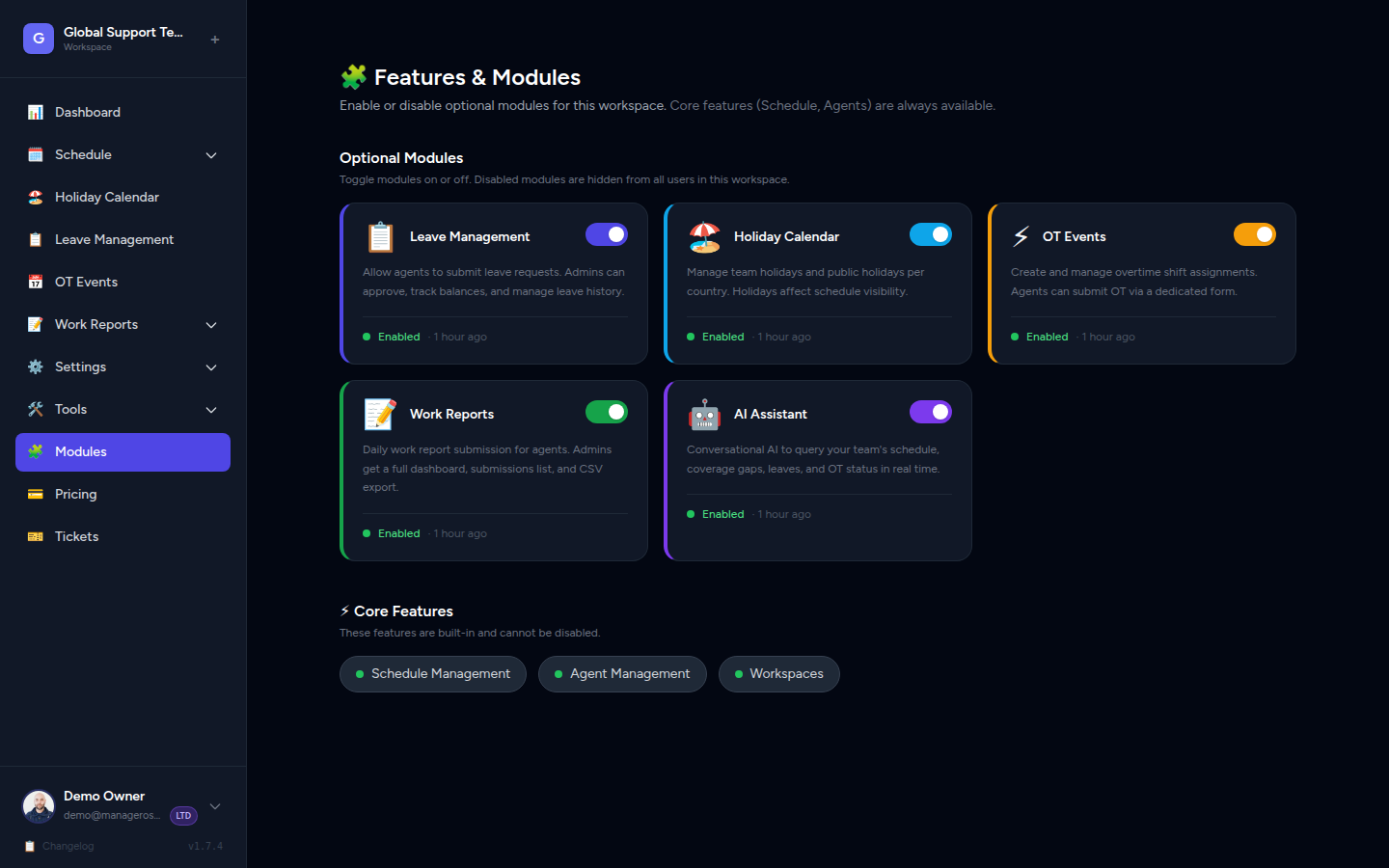
Accessing Workspace Modules
- Sign in as a workspace admin or super admin.
- In the left sidebar, click Settings.
- Under Settings, click Workspace Modules.
You'll see a card for each available module with a name, description, and an ON/OFF toggle.
📸 Screenshot: The Workspace Modules settings page showing four module cards, each with a toggle switch
Available Modules
The following modules are available in the current release. New modules may be added in future updates.
1. OT Schedule Events
| Property | Value |
|---|---|
| Category | Scheduling |
| Affects | Admins and agents |
| Default state | ON |
The OT Schedule Events module enables the full overtime scheduling workflow:
- Admins can create OT Events for holidays, peak periods, or any custom date range
- Agents receive invitations and can submit their availability hour by hour
- Admins review and approve individual agent submissions
- Approved hours are automatically added to the live schedule
When this module is OFF:
- The OT Events item disappears from the admin sidebar
- The My OT Events item disappears from the agent sidebar
- Agents cannot access any OT submission forms
- Any previously created events remain in the database but are inaccessible through the UI
When to turn this off
Disable OT Schedule Events if your workspace operates on a fixed schedule year-round and doesn't need overtime signup forms. This keeps the sidebar clean and prevents agents from looking for a feature that isn't relevant to their role.
📸 Screenshot: The OT Schedule Events module card with its toggle in the ON position
Related docs: OT Events — Agent Submission Guide · OT Events — Admin Guide
2. Work Reports
| Property | Value |
|---|---|
| Category | Reporting |
| Affects | Admins and agents |
| Default state | OFF |
The Work Reports module adds a daily reporting system where agents log what they did each shift and admins review the submissions.
Key capabilities:
- Report templates — admins create structured templates (checklists, free text, numeric fields) that agents fill in
- Daily submission — agents complete and submit a report at the end of their shift
- Admin review — admins read, comment on, and acknowledge reports
- Reporting history — agents and admins can browse historical report submissions
When this module is OFF:
- The Work Reports sidebar link is hidden for all roles
- Agents cannot submit or view reports
- Report templates remain saved if you disable and re-enable the module
Use case
Work Reports is especially useful for remote or distributed teams where managers can't physically observe shift activity. Enable it when you need a structured daily record of what happened on each shift.
📸 Screenshot: The Work Reports module card with its toggle in the OFF position
3. AI Assistant
| Property | Value |
|---|---|
| Category | Productivity |
| Affects | All roles (agents, admins, super admins) |
| Default state | OFF |
The AI Assistant is a natural-language chat widget embedded in the sidebar. Users can ask questions about the schedule in plain language and get instant answers — no need to navigate through multiple pages.
Example queries:
- "Who's covering the night shift tonight?"
- "How many agents are scheduled for Saturday?"
- "Show me all uncovered hours in next week's OT Event."
- "Which agents called in sick this week?"
The assistant has read access to schedule data, OT Events, and (if enabled) Work Reports within the current workspace. It does not take actions — it only surfaces information.
When this module is OFF:
- The chat widget icon disappears from the sidebar
- No AI queries are possible
- Workspace schedule data is not sent to the AI provider
Data and privacy
When the AI Assistant is enabled, schedule-related queries are processed by an external AI provider. No personal data beyond scheduling information (names, shift times) is transmitted. Check your organisation's data policy before enabling this module in regulated environments.
📸 Screenshot: The AI Assistant chat widget open in the sidebar, showing a sample query and response
4. White Label
| Property | Value |
|---|---|
| Category | Branding |
| Affects | All users in the workspace |
| Default state | OFF |
The White Label module allows resellers and enterprise clients to replace Manage Roster's default branding with their own. When enabled, admins can configure:
- Custom logo — replaces the Manage Roster logo in the sidebar header and login page
- Brand color — primary accent color used for buttons, highlights, and badges
- Workspace name — shown in the browser tab title and email notifications
- Custom domain — (if configured at the infrastructure level) serve the workspace from your own subdomain
When this module is OFF:
- The White Label settings sub-page is hidden
- Any previously saved branding (logo, colors) is preserved in the database but not applied — the default Manage Roster branding is shown instead
- Re-enabling the module instantly restores your saved custom branding
Reseller note
White Label is designed for resellers hosting Manage Roster for their own clients. If you're a workspace admin at a single company (not a reseller), you typically don't need this module.
📸 Screenshot: The White Label module card and, below it, the branding configuration panel that appears when the module is ON
Module Quick Reference
| Module | Category | Who it affects | Default |
|---|---|---|---|
| OT Schedule Events | Scheduling | Admins + agents | ON |
| Work Reports | Reporting | Admins + agents | OFF |
| AI Assistant | Productivity | All roles | OFF |
| White Label | Branding | All users | OFF |
How Toggles Work
Turning a Module ON
- Navigate to Settings → Workspace Modules.
- Locate the module card.
- Click the toggle — it moves to the ON (green) position.
- No confirmation dialog appears — the change saves immediately.
- Reload the page (or ask any affected user to reload) — the module's features become available instantly.
📸 Screenshot: A module toggle mid-click, transitioning from OFF to ON
Turning a Module OFF
- Navigate to Settings → Workspace Modules.
- Locate the module card.
- Click the toggle — it moves to the OFF (grey) position.
- The change saves immediately.
- On the next page load, the module's sidebar links and pages disappear for all users in the workspace.
No data is deleted
Turning a module OFF never deletes data. OT Events, Work Reports, and White Label settings are all preserved. You can re-enable a module at any time and pick up exactly where you left off.
Effect Timing
| Event | When it takes effect |
|---|---|
| Module toggled ON | Next page load / browser refresh |
| Module toggled OFF | Next page load / browser refresh |
| Logged-in users mid-session | See change on next navigation or manual refresh |
There is no server restart required. Changes propagate to all users in the workspace within one page load.
Per-Workspace Isolation
Modules are configured independently per workspace. Enabling a module in Workspace A has zero effect on Workspace B.
This matters in multi-workspace setups (common for resellers):
Workspace A (Acme Corp)
  ✅ OT Schedule Events — ON
  ✅ Work Reports — ON
  ❌ AI Assistant — OFF
  ✅ White Label — ON (Acme branding)

Workspace B (Beta Ltd)
  ✅ OT Schedule Events — ON
  ❌ Work Reports — OFF
  ✅ AI Assistant — ON
  ❌ White Label — OFF (default Manage Roster branding)
Each workspace admin can only see and modify their own workspace's module settings. Super admins can switch between workspaces and manage any of them.
📸 Screenshot: Super admin view showing the workspace selector and module settings for the selected workspace
Role Permissions Summary
| Role | Can view modules page | Can toggle modules |
|---|---|---|
| Agent | ❌ No | ❌ No |
| Team Lead | ❌ No | ❌ No |
| Workspace Admin | ✅ Yes (own workspace) | ✅ Yes (own workspace) |
| Owner | ✅ Yes (all workspaces) | ✅ Yes (all workspaces) |
Troubleshooting
A sidebar item is missing for an agent
Check: Is the relevant module ON?
- Go to Settings → Workspace Modules.
- Confirm the toggle for the relevant module is ON.
- Ask the agent to refresh their browser.
If the module is ON and the link is still missing, check whether the agent's role gives them access to that section (e.g. some features are admin-only regardless of module state).
I toggled a module but nothing changed
Make sure the affected user (or you) has refreshed the page. Module changes require a page reload to take effect — they do not push updates to open tabs in real time.
If a refresh doesn't help:
- Try a hard refresh (
Ctrl+Shift+R/Cmd+Shift+R). - Clear the browser cache.
- Log out and log back in.
If the issue persists, contact Manage Roster support.
A module is missing from my Workspace Modules page
Not all modules are available on every plan. The White Label module, for example, is only available on reseller or enterprise plans. If you expect to see a module that isn't listed, check your subscription plan or contact support to have the module enabled at the account level.
Frequently Asked Questions
Does disabling a module cancel agent subscriptions or affect billing? No. Modules are UI feature flags. Enabling or disabling them has no effect on your billing or subscription.
Can agents tell when a module is disabled vs. when they don't have permission? No. From an agent's perspective, a disabled module simply doesn't exist — its sidebar entries are hidden. There's no "access denied" message.
Is there an audit log for module changes? Module toggle events are recorded in the workspace activity log (Settings → Activity Log). Each entry shows which admin made the change, which module was affected, and the timestamp.
Can I schedule a module to turn on/off at a specific time? Not currently. Modules must be toggled manually by an admin. If scheduled activation is important to your workflow, you can set a reminder and toggle the module at the appropriate time.
What happens to in-progress OT submissions if I turn off OT Schedule Events? Agents lose access to the submission form immediately on their next page load. Their in-progress drafts are saved in the database and will be accessible again if you re-enable the module. However, it is strongly recommended to avoid disabling the module mid-event, as this creates a confusing experience for agents.
Related
- OT Events — Agent Submission Guide — Step-by-step for agents completing an OT submission
- OT Events — Admin Guide — Creating events, reviewing agent submissions, approving hours
- Work Reports — Overview — Daily reporting templates and submission workflow
- AI Assistant — Natural-language queries and the chat widget
- White Label Setup — Configuring custom branding for your workspace
- Roles and Permissions — Full breakdown of what each role can access