Appearance
Monthly Calendar View
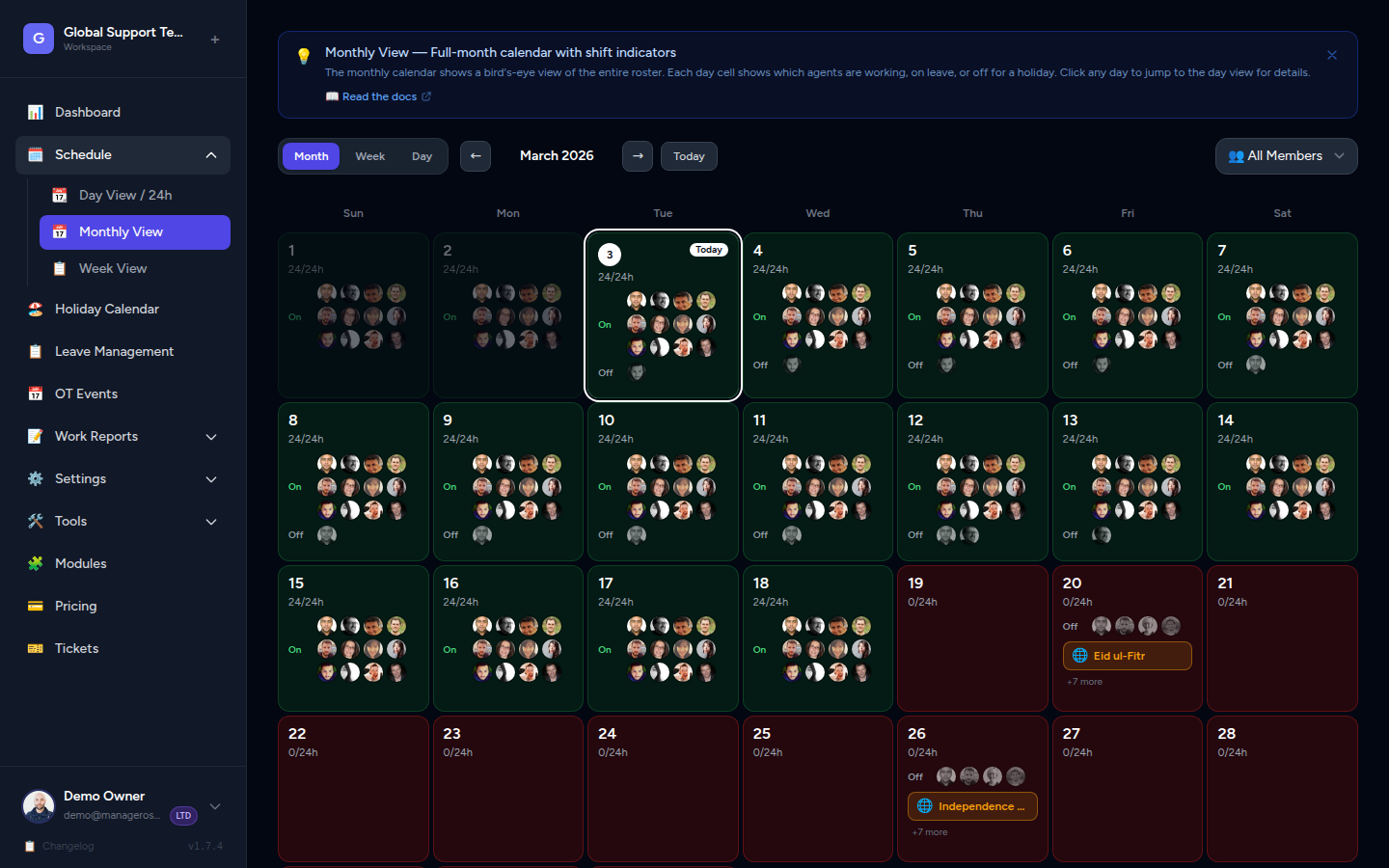
Get a bird's-eye view of your entire team's schedule for any month — who's working, who's off, holidays, overtime, and leave, all in one place.
What the Monthly Calendar Shows
The Monthly Calendar is a full grid calendar — one cell per day. Each day cell tells you at a glance:
- Which agents are scheduled to work that day (shown as colored pills)
- Any overtime (OT) activity
- Leave taken by agents (absences)
- Public holidays (marked in red)
Navigating Between Months
At the top of the calendar you'll find two navigation arrows:
- ← (Previous) — go back one month
- → (Next) — go forward one month
The current month and year are displayed in the header between the arrows.
📸 Screenshot: Month navigation arrows
TIP
You can jump directly to any past or future month by clicking the month/year label and selecting from the picker — useful for planning or reviewing historical coverage.
Reading the Calendar
Agent Pills
Each day cell contains colored pills — one per agent scheduled on that day. The color matches the agent's profile color, making it easy to spot individuals at a glance.
📸 Screenshot: Agent pills in a day cell
If many agents are on shift, the cell may show a +N indicator (e.g. +3 more). Hover or click the cell to see the full list.
Covered Hours
Below the agent pills you may see a small hours count (e.g. 18 hrs covered). This tells you how many hours of the day have at least one agent scheduled — helping you spot coverage gaps before they become problems.
Holiday Markers
Public holidays appear as a red indicator or badge on the day cell. You'll also see the holiday name (and flag emoji if applicable) displayed inside the cell.
WARNING
Agents assigned to the matching holiday group are automatically excluded from the schedule on that day. Their names will not appear in the agent pills.
📸 Screenshot: Holiday marker in a day cell
Clicking a Day for Detail
Click any day cell to see the full detail for that date:
- All agents scheduled and their exact hours
- Any OT assignments
- Agents on approved leave
- Holiday information
You can also click the date number itself to jump directly to the Day View for that date, giving you the full hour-by-hour timeline.
How OT Days Appear
When one or more agents are working overtime on a given day, those agents may be visually distinguished in the cell — typically with a small OT badge or a count indicator (e.g. 2 OT).
This lets you spot at a glance which days have OT coverage without needing to open each day.
INFO
OT entries are schedule slots where an agent is working outside their normal hours or on a day off. They are tracked separately so managers can monitor overtime load.
How Leave Days Appear
When an agent has approved leave on a day, they will not appear as a working agent pill in that day's cell. Instead, the day cell may show a leave count (e.g. 1 on leave) so you know coverage is reduced.
If you need to see exactly who is on leave for a specific day, click the cell or open the Day View — it shows a dedicated On Leave banner at the top.
TIP
If a key agent is on leave, check adjacent days on the calendar to see if you need to arrange cover. The monthly view makes it easy to see multi-day leave stretches.
Quick Reference
| Calendar Element | What It Means |
|---|---|
| Colored pill (agent name/avatar) | Agent is scheduled to work that day |
| Red badge / holiday name | Public holiday applies to some or all agents |
| +N more | More agents than can fit — hover to see all |
| OT count / OT badge | One or more agents are on overtime that day |
| Leave count | One or more agents have approved leave |
| Grayed-out cell | No agents scheduled (potential coverage gap) |