Appearance
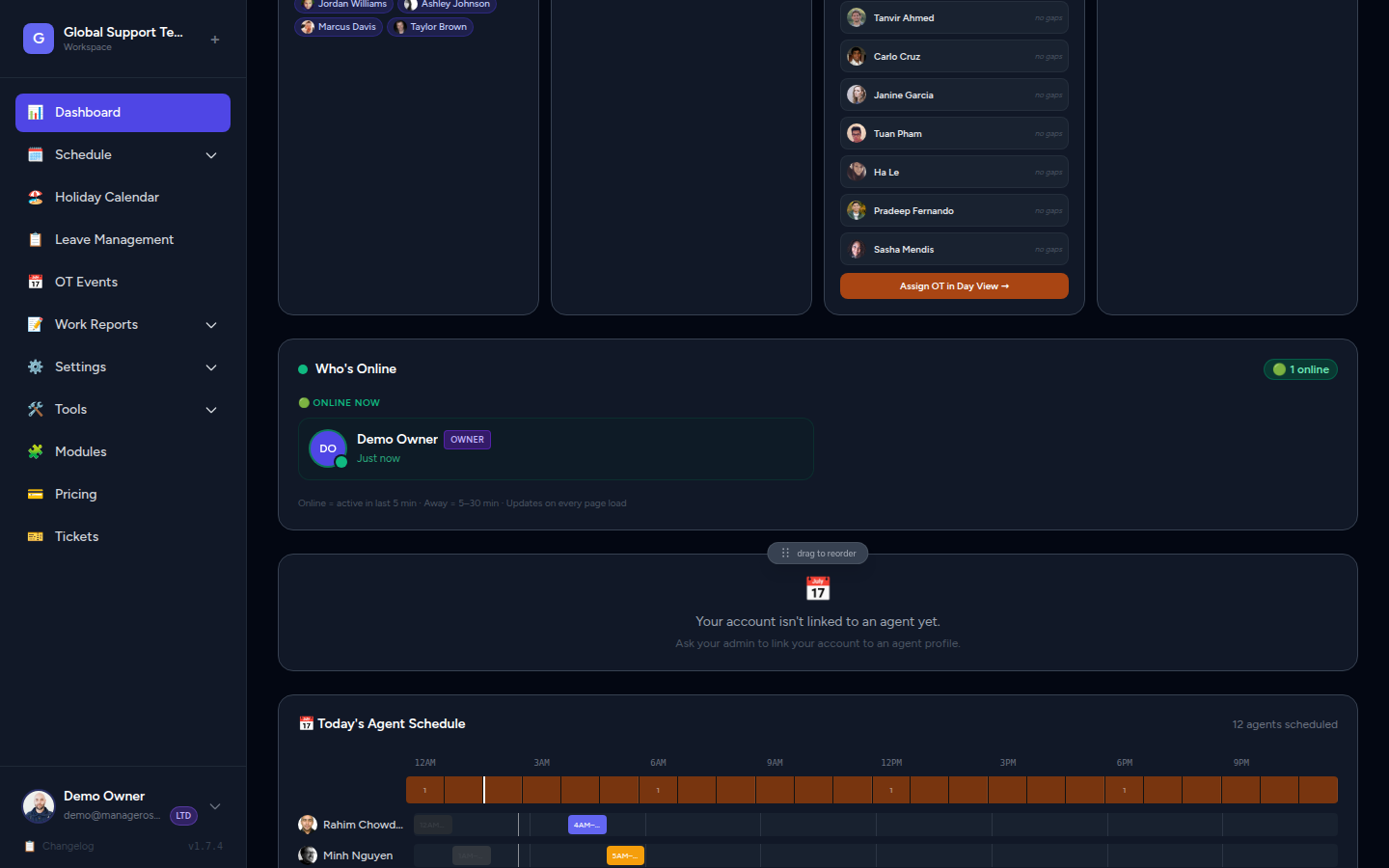
Who's Online — Live Presence Panel
The Who's Online panel shows which team members are currently active in the Manage Roster portal. It gives admins and super admins a real-time read on who's looking at the portal right now — useful for knowing who is available to respond, collaborate, or act on scheduling changes.
Overview
| Property | Detail |
|---|---|
| Location | Manager Dashboard → "Who's Online" section (3rd card by default) |
| Visible to | Admins and Owners only |
| Tracks | Portal activity in the last 30 minutes |
| Update mechanism | Page load (throttled — max once per 2 minutes per session) |
Presence ≠ on shift
Who's Online reflects portal activity, not whether someone is currently on a work shift. An agent browsing the portal during their break will appear Online; an agent on shift but not using the portal will not appear.
Presence States
The panel tracks three presence states based on when a user last loaded a page in the portal.
🟢 Online — Active in the last 5 minutes
- Card style: Bright emerald background
- Dot: Pulsing green dot (animated)
- Timestamp: "Just now" or "X minutes ago" (e.g. "2 minutes ago")
An agent showing as Online was actively using the portal within the past five minutes. This is as close to real-time as the system tracks.
🟡 Away — Active 5–30 minutes ago
- Card style: Muted/subdued background
- Dot: Amber dot (static, no pulse)
- Timestamp: "X minutes ago" (e.g. "12 minutes ago")
An agent showing as Away loaded a portal page between 5 and 30 minutes ago. They may have stepped away or switched to another task.
⚫ Offline — Not shown
Agents who have had no portal activity in the last 30 minutes are not shown in the panel at all. The system only tracks a 30-minute window. No "last seen: 3 hours ago" data is displayed — once 30 minutes passes, the agent simply disappears from the list.
📸 Screenshot: Who's Online panel with one Online card (green pulsing dot) and one Away card (amber dot), demonstrating the visual difference between states
What Each Card Shows
Every presence card displays:
| Element | Description |
|---|---|
| Avatar / initials | Agent's profile photo, or their initials in their assigned agent color if no photo is set |
| Name | Agent's display name |
| Role badge | Their portal role — see Role Badges below |
| Presence dot | Green (pulsing) for Online, amber (static) for Away |
| Last-seen time | "Just now", "2 minutes ago", "14 minutes ago", etc. |
📸 Screenshot: Close-up of an Online card showing avatar in agent color, name "Janine", Admin badge (indigo), pulsing green dot, and "Just now" timestamp
Role Badges
Each card displays a role badge so you know the portal permission level of the person who is online.
| Role | Badge Color | Description |
|---|---|---|
| Owner | 🟣 Violet | Full access — can manage admins, billing, and all settings |
| Manager | 🔵 Indigo | Can manage schedules, leaves, and team configuration |
| Agent | ⚪ Gray | Standard agent — can view their own schedule and submit leave |
Why role badges matter
If you need someone to help approve a leave request or make a schedule change, glance at Who's Online to see which admins are active right now — no need to message around hoping someone is available.
Empty State
When no one has been active in the portal for the last 30 minutes, the panel shows:
💤 No portal activity in the last 30 minutes
This is normal outside business hours or during shift handover periods when the team is on the floor rather than at their computers.
📸 Screenshot: Who's Online panel showing the empty state message with sleep emoji
How Presence Updates Work
The Mechanism
Every time any user loads a page in the Manage Roster portal, the system records their last_seen_at timestamp in the database. The Who's Online panel then reads these timestamps to determine who is Online or Away.
Throttling
To minimize database writes, each user session only updates last_seen_at at most once every 2 minutes. This means:
- A user clicking rapidly through multiple pages in 30 seconds triggers one write, not ten.
- After 2 minutes, the next page load triggers another update.
- The timestamp shown on the card may be up to 2 minutes behind real-time — this is expected.
📸 Screenshot: Diagram showing page loads throttled to one DB write per 2-minute window per user session
No WebSocket or polling
Who's Online does not use a persistent WebSocket connection or JavaScript polling. Presence data is captured passively on page load and read when the dashboard renders. This keeps infrastructure overhead low — no additional server connections needed.
Refresh Rate
The Who's Online panel updates when you reload or navigate to the dashboard. It does not auto-refresh in the background while you sit on the page. To see the latest presence data, refresh the dashboard page.
Visibility Rules
| Portal Role | Can see Who's Online? |
|---|---|
| Owner | ✅ Yes |
| Manager | ✅ Yes |
| Agent | ❌ No |
Agents do not see the Who's Online panel on their own dashboard. The section is hidden entirely for agent-level accounts — they cannot see who is online or away.
Privacy by design
Agents are not informed that their portal activity is being tracked for admin visibility. This is intentional — presence tracking is an admin tool for coordination, not a surveillance system. However, admins should be aware that their own activity is also visible to other admins and super admins.
Common Use Cases
Checking if another admin is available
- Open the Manager Dashboard.
- Look at the Who's Online section (3rd card by default).
- If an admin shows as 🟢 Online, they are actively using the portal and likely able to respond quickly.
Coordinating leave approvals in real time
If a leave request just came in and needs quick approval:
- Check Who's Online for an available admin.
- Reach out directly — they're already in the portal, so approval takes seconds.
Knowing who's active before making schedule changes
Before making a significant change that others may need to know about:
- Check Who's Online to see if other admins are active.
- If they are, coordinate or give a heads-up before saving changes that affect shared views.
Frequently Asked Questions
Does Who's Online show whether an agent is on their work shift?
No. It only reflects portal activity. An agent can be on shift without using the portal, and can be Online in the portal while on break. See the Metrics section or the Gantt chart for actual shift coverage.
Can I see agents who logged in earlier today but aren't active right now?
No. The panel only tracks the last 30 minutes. Historical login or activity data is not shown here.
My last-seen time seems a few minutes behind — is that a bug?
No. The throttle means each session writes at most once every 2 minutes. A small lag (up to 2 minutes) is expected and normal.
Can an agent see which admins are online?
No. The Who's Online panel is hidden from agent accounts entirely.
Does refreshing the page count as activity?
Yes. Any page load (including refreshes) that passes the 2-minute throttle will update the user's last_seen_at timestamp.