Appearance
Work Report Calendar View
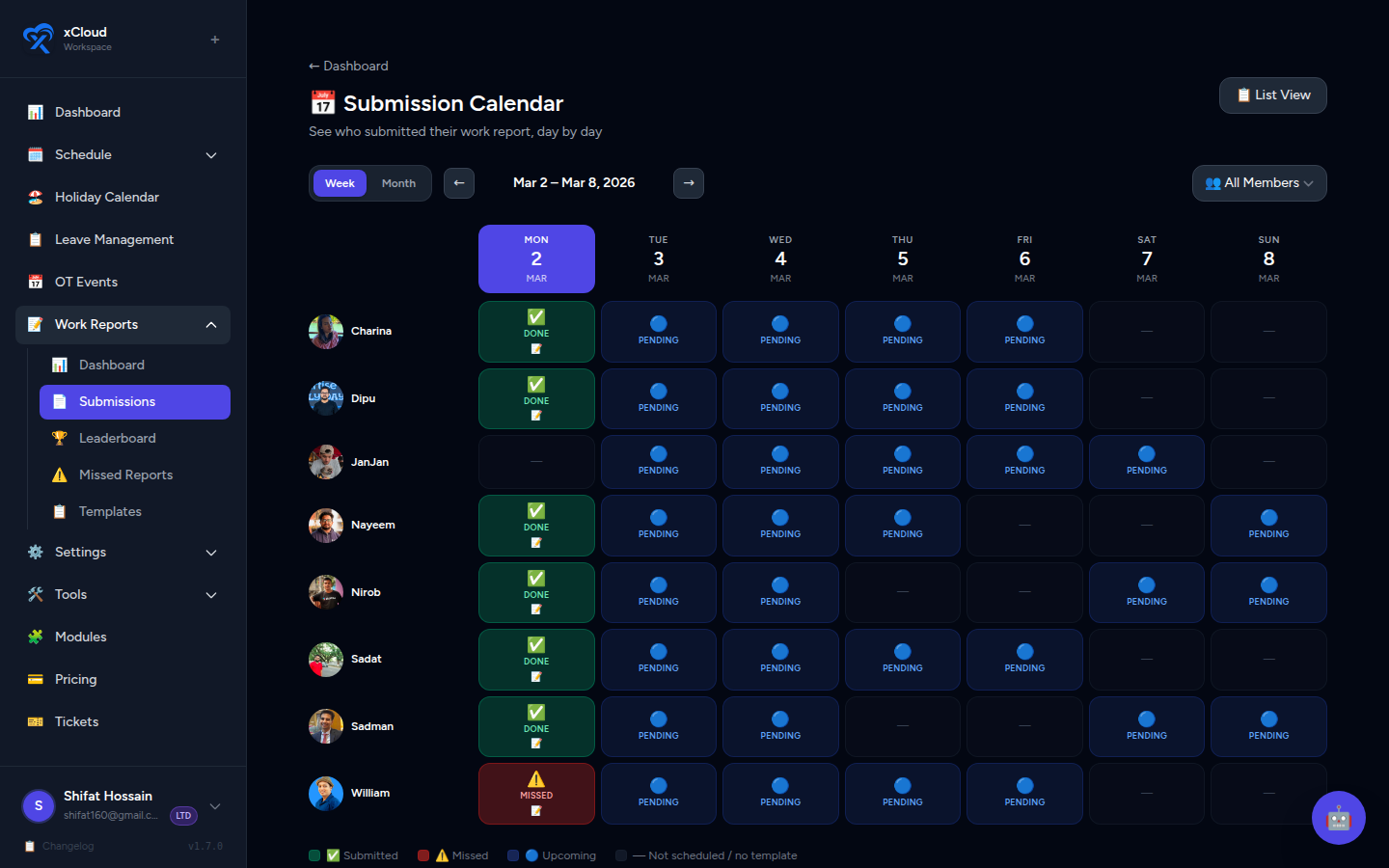
The Work Report Calendar View displays your team's submission coverage as a colour-coded grid — agents on rows, dates on columns. It gives you an immediate visual picture of who submitted on which days, who missed, and what is still upcoming.
Who can access this?
The Calendar View is part of the admin Work Reports area. It is visible to users with the Owner or Manager role.
Accessing the Calendar View
- In the left sidebar, click Work Reports.
- Click Submissions to open the submissions table.
- In the top-right corner of the Submissions page, click the Calendar View button.
📸 Screenshot: Submissions page with the "Calendar View" button highlighted in the top-right corner
Layout
The Calendar View is a matrix grid:
- Rows — one row per agent
- Columns — one column per date in the selected period
Each cell at the intersection of an agent and a date is colour-coded to show that agent's submission status for that day.
📸 Screenshot: Full Calendar View grid showing agents as rows and dates as columns, with colour-coded cells
Range Toggle
Use the toggle in the top area of the Calendar View to switch between two date ranges:
| Range | Description |
|---|---|
| Week | Shows 7 days (Mon–Sun) for the selected week |
| Month | Shows all days of the selected calendar month |
📸 Screenshot: Calendar View with Week/Month toggle visible at the top
Start with Month view for coverage audits
Month view gives you a complete picture of submission patterns across the entire period. Switch to Week view to zoom in on a specific stretch of days.
Colour Key
Each cell in the grid is one of four colours:
| Colour | Meaning |
|---|---|
| 🟢 Green | Agent submitted a report for this day |
| 🔴 Red | Missed — agent was scheduled, the day is in the past, and no report was submitted |
| 🔵 Blue | Future — the date has not yet passed; submission status is pending |
| ⬜ Grey | Not scheduled — the agent had no shift on this date |
📸 Screenshot: Colour legend shown above the calendar grid, with example cells for each status
Red means actionable
A red cell is a confirmed missed report — the shift happened, the day has passed, and no submission exists. Use red clusters to identify agents who need follow-up or re-training on the reports workflow.
Blue is not a problem
Blue cells are simply future dates. No action is needed until those dates pass. If they remain blue and then the day passes without a submission, they turn red.
Clicking a Cell
Green cells — View submission details
Click any green cell to open a side panel or modal showing the full details of that agent's submission for the selected date.
- View all report fields the agent filled in.
- See the submission timestamp.
- Access review notes (if any have been added).
📸 Screenshot: Side panel opened after clicking a green cell, showing agent name, date, and full report fields
Red, Blue, and Grey cells
Red, blue, and grey cells are currently informational only. Clicking them does not open a submission detail view because no submission exists for those combinations.
Navigate to missing reports
To take action on a red cell, go back to the main Submissions table, filter by the agent and date, and send a reminder or mark the report as reviewed from there.
Quick Reference
| Element | Details |
|---|---|
| Access path | Work Reports → Submissions → Calendar View button (top right) |
| Range options | Week, Month |
| Rows | One per agent |
| Columns | One per date in the selected range |
| Green | Submitted |
| Red | Missed (scheduled + past + no submission) |
| Blue | Future date |
| Grey | Not scheduled |
| Click green cell | Opens submission detail view |
Related
- Work Reports — Admin Guide — Full admin overview including templates and notifications
- Work Report Dashboard — Submission status overview by day, week, or month
- Work Report Leaderboard — Ranked agent performance metrics