Appearance
Slack Integration
Connect Manage Roster to your Slack workspace to keep your team informed in real time. Once connected, the integration does two things automatically:
- Channel posts — when an agent submits a Work Report, a summary is posted to the Slack channel you choose per template.
- DM alerts — when an agent misses a report, they receive a Slack direct message 3 hours after their shift ends.
Who can manage this?
Configuring the Slack integration requires the Admin or Owner role.
Overview
| Feature | What happens | Where to configure |
|---|---|---|
| Channel posting | Auto-posts a summary when a Work Report is submitted | Work Report Template → Slack Notification |
| DM alerts | Sends the agent a DM if no report is submitted 3 hours after shift end | Integrations → Slack → Alert Notifications |
| @mentions | Tags the agent by name in channel posts | Agent Management → Slack Member ID |
Step 1 — Connect Slack
- In the left sidebar, go to Tools → Integrations.
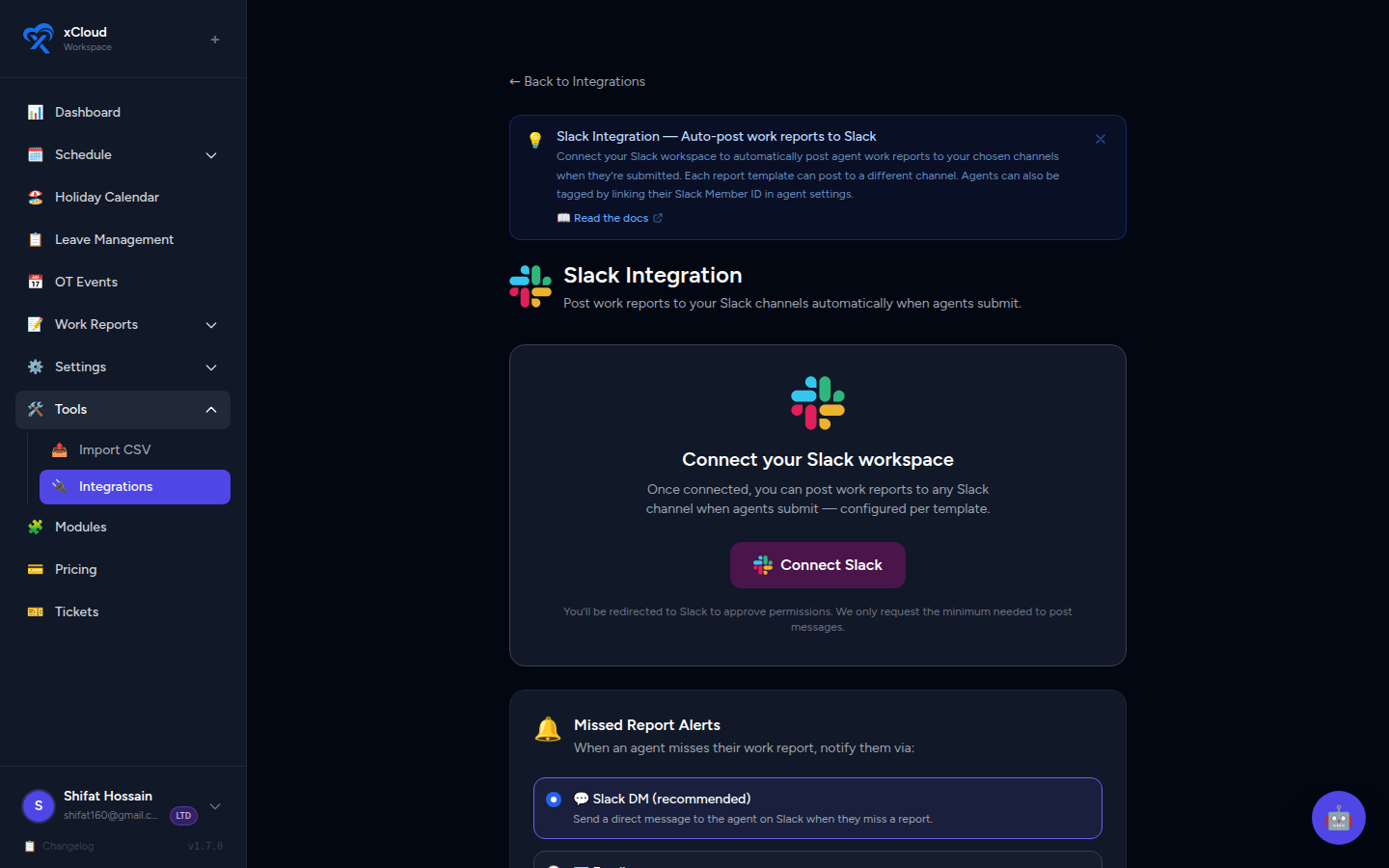
- Find the Slack card and click Connect Slack.
- You'll be redirected to Slack's OAuth page. Sign in if prompted, then select the Slack workspace you want to connect.
- Review the requested permissions and click Allow.
- You'll be redirected back to Manage Roster. The Slack card will show a Connected status.
📸 Screenshot: Integrations page with the Slack card showing "Connect Slack" button
📸 Screenshot: Slack OAuth permissions screen asking for approval
📸 Screenshot: Slack card updated to "Connected" with Pause and Disconnect buttons visible
Reconnect required for DM alerts (connected before 1 March 2026)
The DM alerts feature requires the im:write permission. If you connected Slack before 1 March 2026, your current connection does not have this scope. You must Disconnect and then Connect Slack again to grant the updated permissions — otherwise DM alerts will not fire.
Step 2 — Invite the Bot to Your Channels
Before the bot can post to a channel, it must be a member of that channel.
- In Slack, open the channel you want reports posted to.
- Type
/invite @ManageRosterand press Enter. - Slack will confirm that the bot has joined.
📸 Screenshot: Slack channel with the /invite command typed and the bot join confirmation message
Do this for every channel you plan to use
The channel dropdown in Work Report Templates only shows channels the bot is already a member of. If a channel doesn't appear in the list, invite the bot to it first, then refresh the template settings page.
Step 3 — Set a Channel for a Work Report Template
Channel posting is configured per template, so different report types can post to different Slack channels.
- Go to Work Reports → Templates (or Settings → Work Report Templates).
- Click Edit on the template you want to configure.
- Scroll to the Slack Notification section at the bottom of the form.
- Use the Channel dropdown to select the Slack channel where submissions should be posted.
- Click Save Template.
📸 Screenshot: Work Report Template edit form with the "Slack Notification" section visible at the bottom, channel dropdown open
From this point on, every agent submission against that template will automatically post a summary to the selected channel.
No channel selected = no channel post
If the Slack Notification section is left blank (no channel chosen), submissions to that template will not trigger any channel post. This lets you use Slack for some templates but not others.
Step 4 — Add Slack Member IDs to Agents
The Slack Member ID connects each Manage Roster agent to their Slack account. It is used for two things:
- @mentions in channel posts, so teammates know whose report just came in.
- DM targeting for missed-report alerts.
Finding a Slack Member ID
- In Slack, click the agent's profile picture or name anywhere in Slack.
- Click More (the three-dot menu on the profile card).
- Click Copy member ID.
- The ID is copied to your clipboard — it starts with
U(e.g.U012AB3CD).
📸 Screenshot: Slack profile card with the "More" menu open and "Copy member ID" option highlighted
Adding the ID in Manage Roster
- Go to Agents in the left sidebar.
- Click the agent you want to update, then click Edit.
- Find the Slack Member ID field and paste the ID.
- Click Save.
📸 Screenshot: Agent edit form with the "Slack Member ID" field highlighted
Set IDs for all active agents
Agents without a Slack Member ID will not be @mentioned in channel posts and will not receive DM alerts. It takes under a minute per agent — worth doing for your whole team at setup time.
Step 5 — Configure Alert Notification Preference
By default, missed-report alerts are sent as Slack DMs. You can change this per workspace.
- Go to Tools → Integrations → Slack.
- Scroll to the Alert Notifications card at the bottom of the page.
- Choose your preferred delivery method:
| Option | What happens |
|---|---|
| Slack DM (default) | Agent receives a direct message in Slack 3 hours after their shift ends |
| Agent receives an email reminder instead | |
| Both | Agent receives both a Slack DM and an email |
- Click Save (if a save button appears) or wait for the auto-save confirmation.
📸 Screenshot: Alert Notifications card with the three radio options (Slack DM, Email, Both) visible
DM timing
The Slack DM fires 3 hours after the agent's shift ends for that day. If the agent submits their report before the DM fires, the DM is suppressed — they only get a DM if no report has been submitted by the time the check runs.
Slack Member ID required for DMs
If an agent does not have a Slack Member ID set, the DM is silently skipped — no error is shown. Make sure every agent who should receive DM alerts has their Slack Member ID configured (see Step 4).
Managing the Connection
From Tools → Integrations → Slack you can:
| Action | What it does |
|---|---|
| Pause | Temporarily stops all channel posts and DM alerts. Your configuration is preserved. |
| Resume | Re-enables posting and DMs after a pause. |
| Disconnect | Removes the Slack connection entirely. Channel and alert settings are preserved, but nothing will be posted or sent until you reconnect. |
📸 Screenshot: Slack integration card with Pause, Resume, and Disconnect buttons labelled
Use Pause during maintenance
If you're making bulk changes to templates or agent configurations and don't want notifications firing mid-edit, Pause the integration, make your changes, then Resume.
How Channel Posts Look
When an agent submits a Work Report, the Slack message includes:
- The agent's name (as an @mention if a Slack Member ID is set)
- The report date and template name
- A summary of the key fields from the report
- A link to view the full report in Manage Roster
📸 Screenshot: Example Slack channel post showing agent mention, date, and report summary
How DM Alerts Look
When a missed-report DM fires, the agent receives a direct message from the ManageRoster bot containing:
- The date for which the report is missing
- A reminder that their report is overdue
- A direct link to open the report form in Manage Roster
📸 Screenshot: Example Slack DM from the ManageRoster bot with a missed-report reminder
Troubleshooting
The bot isn't posting to the channel
- Bot not in the channel? In Slack, type
/invite @ManageRosterin the target channel. - Wrong channel selected? Check the template's Slack Notification section and confirm the correct channel is selected.
- Integration paused? Go to Tools → Integrations → Slack and click Resume if the status shows Paused.
- Integration not connected? The card should show Connected. If it doesn't, click Connect Slack to reconnect.
Agents aren't receiving DM alerts
- No Slack Member ID? Go to Agents → Edit and paste the agent's Slack Member ID. Alerts cannot be delivered without it.
- Missing
im:writescope? If connected before 1 March 2026, disconnect and reconnect to grant the updated permissions. - Alert preference set to Email? Go to Tools → Integrations → Slack → Alert Notifications and check the selected delivery method.
- Report already submitted? The DM is only sent if no report exists at the time the check runs (3 hours after shift end). If the report was submitted late but before the check, no DM fires.
A channel doesn't appear in the template dropdown
The dropdown only lists channels the bot has been invited to. In Slack, run /invite @ManageRoster in the missing channel, then return to the template editor and refresh the page.
The integration shows "Paused"
Go to Tools → Integrations → Slack and click Resume.
Quick-Setup Checklist
Use this checklist when setting up the Slack integration for the first time:
- [ ] Connect Slack via Tools → Integrations → Slack → Connect Slack
- [ ] Invite
@ManageRosterto every channel you want reports posted to - [ ] For each Work Report Template, open Edit → Slack Notification and select a channel
- [ ] For each active agent, add their Slack Member ID in Agents → Edit
- [ ] Set Alert Notifications preference (Slack DM / Email / Both) in Tools → Integrations → Slack
- [ ] Submit a test report to confirm the channel post appears correctly
Related
- Work Reports — Admin Guide — Managing templates, reviewing reports, and missed-report detection
- Integrations Overview — All available integrations
- Agents — Managing agent profiles and configurations