Appearance
Holiday Calendar
The Holiday Calendar shows all national public holidays observed by your team, organized by region. Because your team spans multiple countries, holidays are grouped so each agent only observes the holidays relevant to their location.
New in the latest release: filter tabs, coverage mini-cards, clickable dates, and visual cues for upcoming vs. past holidays — so you always know what's coming and who will be affected.
Holiday Groups
Manage Roster uses two regional holiday groups:
| Group | Region | Agents |
|---|---|---|
| 🇧🇩 BD | Bangladesh | Kasun, Tanvir, Miguel, Marcus, Rahim |
| 🇵🇭 PH | Philippines | Janine, Dilini, William |
Each agent belongs to one group. When a national holiday falls for their group, they are automatically marked as off — no manual entry needed.
Custom company-wide holidays
Admins can also create custom holidays that apply to everyone on the team, regardless of group. For example, a company retreat day or an office closure.
Navigating to the Holiday Calendar
- From the sidebar, click Holidays (or Holiday Calendar).
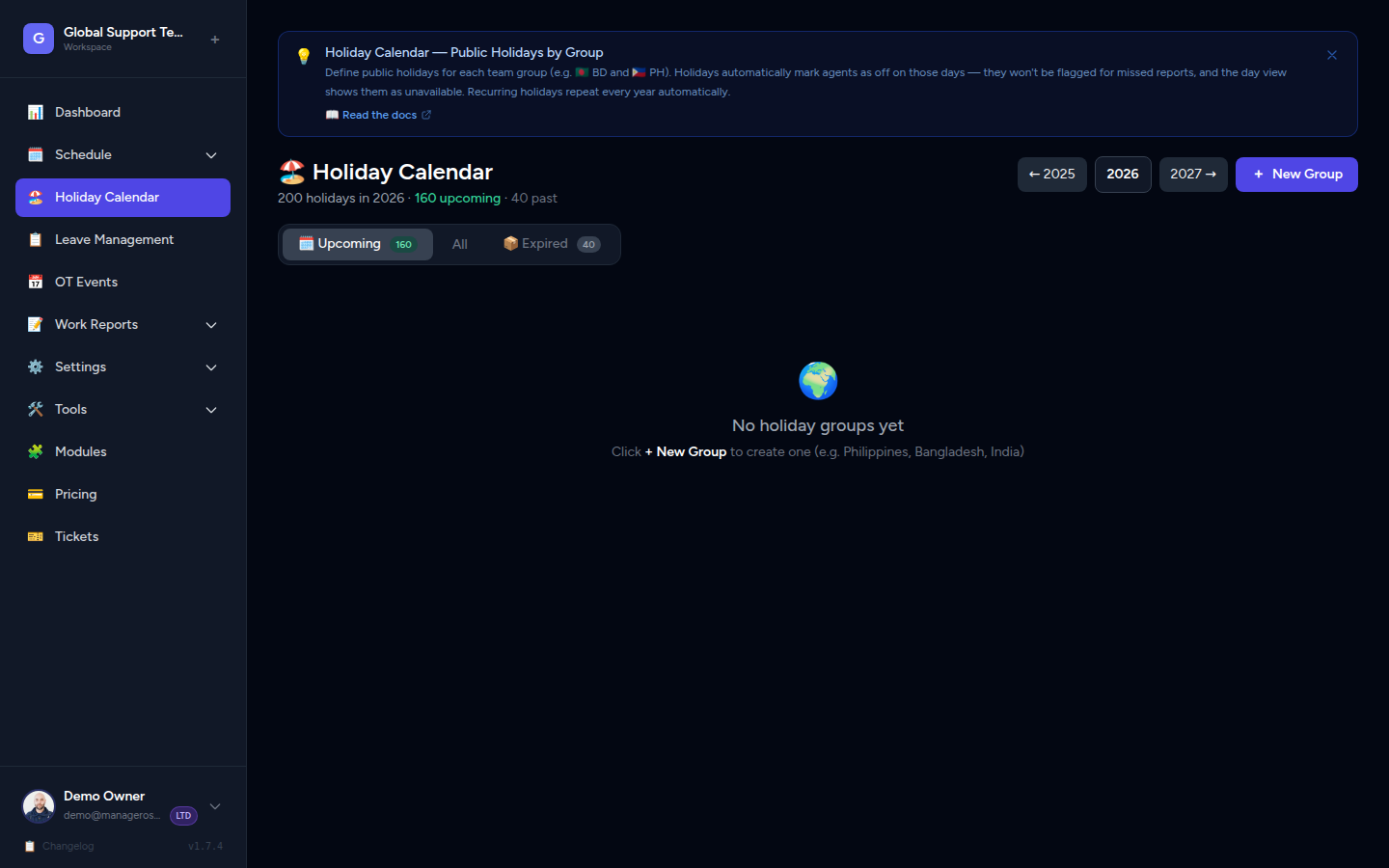
- The page displays the holiday grid filtered to Upcoming holidays by default.
- Use the filter tabs at the top to switch views.
- Use the year selector to browse a different year.
📸 Screenshot: Holiday Calendar page showing filter tabs (All | Upcoming | Expired) above the holiday grid, with upcoming holidays listed first
Filter Tabs
Three filter tabs sit above the holiday grid, letting you focus on what matters:
| Tab | Icon | What it shows |
|---|---|---|
| All | — | Every holiday in the selected year, past and future |
| Upcoming | 🗓 | Holidays from today onwards (default) |
| Expired | 📦 | Holidays that have already passed |
📸 Screenshot: Filter tabs with "Upcoming [5]" selected, showing the badge count
Count Badges
Each tab displays a count badge showing how many holidays fall in that category for the current year — for example, Upcoming [5] or Expired [8].
The badge updates automatically as time passes. On 1 January the Expired badge shows 0; by year-end almost all holidays have moved there.
Why Upcoming is the default
The page opens on Upcoming so your team always lands on what's relevant now — not a long list of past dates they need to scroll past.
Holiday Entry — What You See
Each holiday card in the grid shows:
- The holiday name (e.g. "Eid ul-Fitr")
- The date (clickable — see Clickable Date Links below)
- The group badge (🇧🇩 BD or 🇵🇭 PH, or a custom badge for company-wide holidays)
- How many agents are affected
- Coverage mini-cards for upcoming holidays (see Coverage Mini-Cards below)
Today Badge
If a holiday is happening today, an amber pulsing "Today" badge appears on the card — easy to spot at a glance.
📸 Screenshot: Holiday card with pulsing amber "Today" badge next to the holiday name
Expired Dimming
Past holidays are shown at reduced opacity in the All tab. The holiday name has a strikethrough style and a grey "Past" badge appears on the card. This keeps expired entries from competing with upcoming ones visually.
📸 Screenshot: Expired holiday card with dimmed appearance, strikethrough name, and grey "Past" badge
Clickable Date Links
The date displayed below each upcoming holiday name is a clickable link. Clicking it takes you directly to the Day Schedule view for that date:
/schedule/YYYY-MM-DDExample: Clicking 16 Feb 2026 on a PH holiday card opens the schedule for /schedule/2026-02-16, where you can see the full day's roster and make any adjustments.
Jump straight to the schedule
Use this link when you want to verify coverage or manually add agents for Holiday OT — no need to navigate separately to the schedule.
Coverage Mini-Cards
Each upcoming holiday card shows two compact coverage mini-cards beneath the holiday details. They give you an immediate read on staffing risk without opening the schedule.
📸 Screenshot: Holiday card with two side-by-side coverage mini-cards — "On Duty 3/8" on the left and "Risk: Low" on the right
Left Card — On Duty
Shows how many agents will be working on the holiday date vs. the total headcount.
| Element | Description |
|---|---|
| Count | 3/8 — three agents on duty out of eight total |
| Agent dots | Colored dot indicators, one per agent on duty, in their assigned agent color |
The agent dots let you see at a glance which agents are working, not just how many.
Right Card — Risk Level
Shows the coverage risk for the holiday, based on how many agents are off and which group the holiday belongs to.
| Risk Level | Color | Meaning |
|---|---|---|
| OK | 🟢 Green | Sufficient coverage — no action needed |
| Low | 🟡 Amber | Slightly under-staffed — worth reviewing |
| Critical | 🔴 Red | Seriously under-staffed — arrange cover |
| No Cover | 🔴 Red | Nobody is scheduled — immediate action required |
The card also shows:
- Number off — how many agents are taking this holiday
- Group name — which group the holiday applies to (e.g. BD, PH)
When you see Critical or No Cover
Click the date link on the holiday card to jump straight to the Day Schedule. From there you can manually assign agents for Holiday OT shifts.
How Coverage Is Calculated
Holiday groups determine which agents are Off vs. On for coverage:
- The holiday has a group (e.g. BD or PH).
- All agents in that group are counted as Off on the holiday date.
- Agents in other groups remain On Duty unless they have approved leave.
- The On Duty count and Risk level are calculated from these figures.
Example: A PH holiday affects Janine, Dilini, and William (3 agents off). If there are 8 agents total, 5 remain on duty → On Duty 5/8. The Risk level depends on your minimum coverage threshold.
How Holidays Appear Elsewhere
On the Monthly Calendar, days with a public holiday are marked with a red indicator. Hovering over or clicking the day shows which holiday it is and how many agents are off.
📸 Screenshot: Monthly calendar view with red holiday markers on affected dates
Agents in the relevant group are automatically shown as absent on those days in:
- The Day View (with the holiday name displayed in the absence banner)
- The Monthly Calendar
- The Dashboard "Who's Out" card
- The Dashboard "Upcoming" card (holidays appear alongside approved leaves)
Recurring vs. One-Time Holidays
Some holidays fall on the same date every year (e.g. Independence Day). Others are set for a specific year only (e.g. a holiday that moves based on the lunar calendar).
- Recurring holidays — automatically apply every year on the same date. No action needed.
- One-time holidays — only apply for the year they were added.
The holiday list shows the correct date for the year you are currently viewing.
Adding a Custom Holiday (Admin only)
Admins can add custom holidays — for example, a company-wide day off or a one-off closure.
- Go to Holidays in the sidebar.
- Click Add Holiday (top-right corner).
📸 Screenshot: "Add Holiday" button on the Holidays page
- Fill in the details:
| Field | Description |
|---|---|
| Name | e.g. "Company Retreat" |
| Date | The day this holiday applies |
| Group | Choose BD, PH, or All (applies to everyone) |
| Recurring | Toggle on if this should repeat every year |
| Notes (optional) | Any extra context for the team |
- Click Save.
The holiday is immediately applied. Any agent in the selected group will have their schedule entries for that date automatically removed — they will show as off.
Impact on schedules
Adding a holiday removes scheduled shifts for all affected agents on that date. If you need agents to work on a public holiday (overtime), you can still assign them manually — they will be flagged as Holiday OT in the Day View.
Removing a Holiday
If a holiday was added by mistake or is no longer applicable:
- Go to Holidays and find the holiday in the list.
- Click the Delete icon (trash can) on the holiday card.
- Confirm the deletion.
Deleting a holiday will automatically restore the schedule entries for affected agents on that date, based on their usual shift patterns.
Expired holidays
You can delete expired holidays from the Expired tab or from the All tab. Deleted holidays do not affect historical records — past schedule data is preserved.
Quick Reference
| Feature | Where to find it |
|---|---|
| Filter tabs (All / Upcoming / Expired) | Top of the Holiday Calendar page |
| Count badge (e.g. Upcoming [5]) | On each filter tab |
| Today badge (pulsing amber) | On the current day's holiday card |
| Expired dimming + Past badge | Any holiday with a past date (visible in All / Expired tabs) |
| On Duty mini-card | Bottom-left of each upcoming holiday card |
| Risk Level mini-card | Bottom-right of each upcoming holiday card |
| Clickable date → day schedule | The date link on each upcoming holiday card |
| Add Holiday | Top-right button on the Holidays page (Admin only) |
| Delete Holiday | Delete icon on the holiday card (Admin only) |