Appearance
Link a User Account to an Agent
When a team member logs into Manage Roster, they see the schedule for everyone. But if you link their user account to their agent profile, they also get a personalized view — their own shifts are highlighted and they can interact with features tied to their identity on the roster (such as submitting overtime requests).
This page explains how to set up that link.
Why Link a User to an Agent?
| Without a link | With a link |
|---|---|
| User logs in and sees the team schedule | User's own shifts are highlighted on the schedule |
| No personalized view | User can see and manage their own overtime, leaves, and shift data |
| User is just a viewer | User has an "identity" on the roster |
Two separate things
A user account is a login (email + password). An agent is a roster profile (the person on your schedule). They're separate by design — you can have agents without logins, and users without roster profiles. Linking them together is optional but recommended for anyone who actively uses the app.
Before You Start
- The team member must already have a user account in your workspace. If they don't, invite them first.
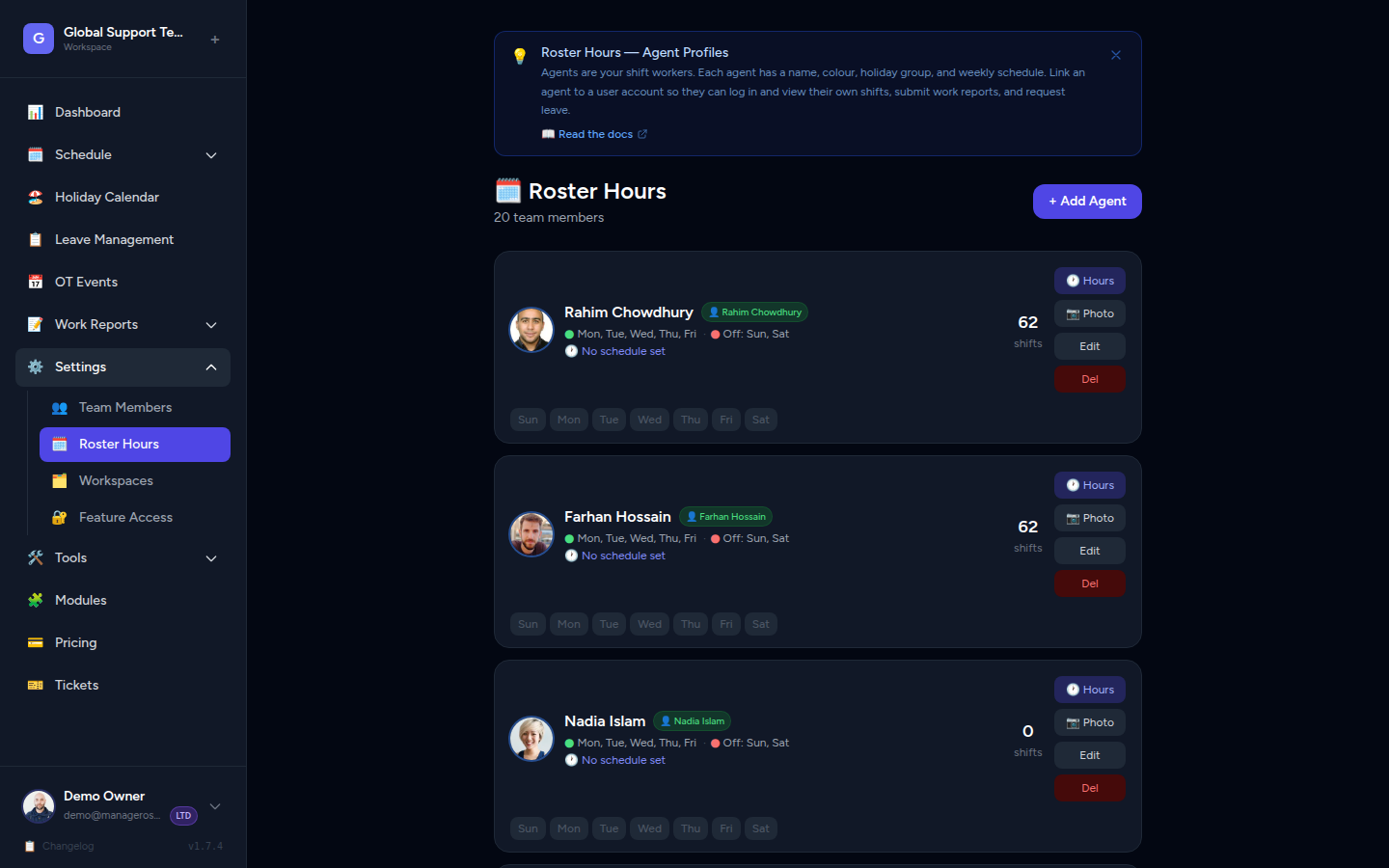
- The team member must already have an agent profile. If they don't, add them as an agent first.
- Only a Owner can link user accounts to agents.
How to Link a User to an Agent
- Open the left sidebar and click Users.
- Find the team member you want to link. You'll see their name, email, and role.
- Click the Edit button (pencil icon) next to their name.
- In the Linked Agent field, click the dropdown and select their agent profile from the list.
- Click Save.
📸 Screenshot: Link user to agent — edit panel
The link takes effect immediately. The next time that user opens the app, they'll see their personalized schedule view.
One-to-one relationship
Each user can be linked to one agent only, and each agent can only be linked to one user. If you need to change who's linked to an agent, unlink the current user first (see below).
What Happens After Linking
Once a user is linked to an agent:
- Their shifts are highlighted on the schedule — it's easy for them to see their own working days at a glance.
- Their name and color appear in the app header or profile area, matching their agent color from the roster.
- Personalized features unlock — they can view and interact with their own overtime submissions, leave requests, and schedule data directly.
- The link is workspace-aware — if your organization has multiple workspaces, the link only applies in the workspace where the agent was created.
Nothing changes for the team schedule
Linking a user to an agent doesn't change how the agent appears on the shared team schedule. The schedule looks the same to everyone — it's only the logged-in user's own experience that becomes personalized.
Unlinking a User from an Agent
You might want to unlink a user from an agent if:
- The person has moved to a different role and their agent profile needs to be reassigned.
- You made a mistake and linked the wrong user.
- The team member no longer needs a personalized view.
Steps to unlink:
- Go to Users in the sidebar.
- Click Edit next to the user you want to update.
- In the Linked Agent field, clear the selection (click the × or choose None).
- Click Save.
The user's account is now unlinked. They'll still be able to log in and view the team schedule, but they won't have a personalized view tied to an agent profile.
📸 Screenshot: Unlink user from agent
The agent profile is not affected
Unlinking a user from an agent does not delete the agent or remove them from the schedule. The agent's shifts and history remain intact. Only the personal connection between the login account and the roster profile is removed.
Frequently Asked Questions
Do all agents need to be linked to a user? No. Agents can exist purely as schedule entities. If someone doesn't need to log in and see their own shifts, there's no need to create a user account or link it.
Can a user exist without being linked to an agent? Yes. Admins and managers often have user accounts but aren't on the shift schedule themselves. They don't need an agent profile.
What if I link the wrong user to an agent? Just unlink them (see above) and then link the correct user. No data is lost.
Can an agent be linked to a user in a different workspace? No. The link only works within the same workspace. If a user switches workspaces, their linked agent must belong to that workspace for the personalized view to activate.
Who can manage user-agent links? Only Owners can link or unlink user accounts to agent profiles. Regular admins can manage agent profiles (add, edit, deactivate) but cannot manage user account links.