Appearance
Submitting a Leave Request
Leave requests let you record planned or unplanned absences for agents. Once a leave is approved, the agent automatically appears as absent on the Day View and the monthly calendar for those dates.
Who can submit leave?
Managers and admins can submit leave on behalf of any agent. Agents do not have a self-service form — leave is recorded by the team manager or admin.
Leave Types
Manage Roster tracks three types of leave, each with its own separate balance:
| Type | When to use |
|---|---|
| Casual | Short, unplanned absences |
| Annual | Planned vacation or time off |
| Sick | Medical or health-related absence |
How to Submit a Leave Request
- From the sidebar, go to Leave Management.
- Click New Leave Request (top-right corner).
📸 Screenshot: Leave Management page with the "New Leave Request" button highlighted
- Fill in the request form:
- Agent — Select the agent taking leave.
- Leave Type — Choose Casual, Annual, or Sick.
- Start Date / End Date — Pick the first and last day of the leave period (both dates are inclusive).
- Notes (optional) — Add a reason or any context for the request.
📸 Screenshot: New Leave Request form with all fields filled in
- Click Submit.
The leave request is created and enters the approval queue. The agent's schedule is not yet affected — changes only take effect once the leave is approved.
Date Range
If the agent is taking a single day off, set the start and end date to the same day.
Viewing Leave Requests
All submitted leaves are listed in Leave Management. You can filter by status to quickly find what you need:
- Pending — Awaiting a decision
- Approved — Confirmed absences
- Rejected — Declined requests
📸 Screenshot: Leave Management list with status filter tabs
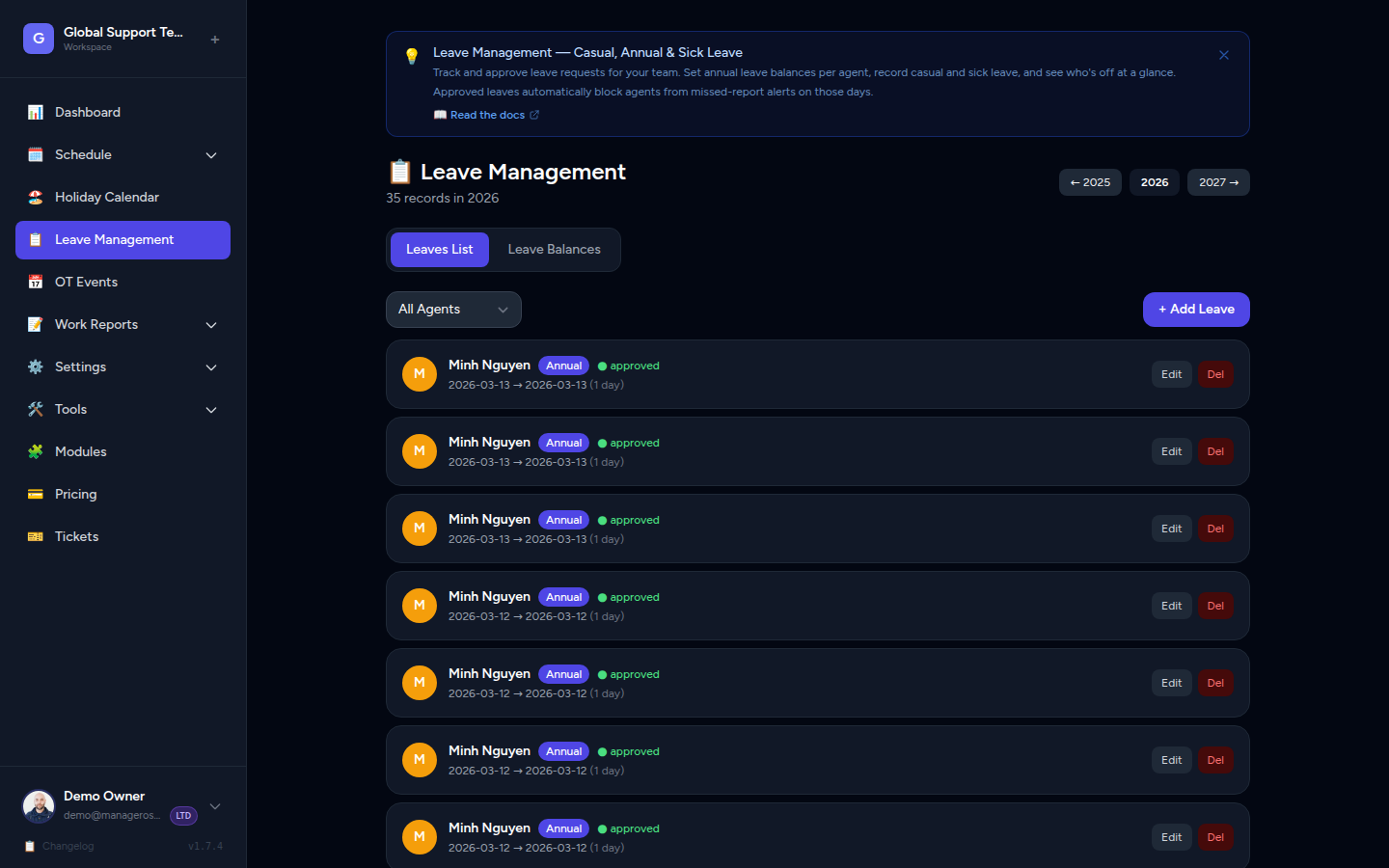
Each row shows the agent name, leave type, date range, total days, and current status.
Checking Leave Balances
Each agent has an annual entitlement for casual, annual, and sick leave. To check how many days an agent has used or has remaining:
- Open the agent's leave record in Leave Management.
- The balance summary is shown at the top — used days vs. total entitlement for the current year.
Balance tracking
Leave balances are calculated dynamically. The "used" count only increases when a leave is approved — pending or rejected leaves do not affect the balance.
Canceling a Leave Request
You can delete a leave request as long as it has not already been acted on, or even after approval if plans change.
- Go to Leave Management and find the leave request.
- Click the Delete (trash) icon on the right side of the row.
- Confirm the deletion.
Canceling approved leave restores the schedule
If the leave was already approved, deleting it will automatically restore the agent's schedule entries for those dates. The agent will appear as scheduled again on the calendar.