Appearance
AI Setup (Admin)
How to connect OpenAI to your Manage Roster workspace so your team can use the AI Assistant.
Owner only
Only a Owner can set up the AI integration. If you're not a Owner, share this guide with the person who manages your workspace.
What You'll Need
Before you start, you need an OpenAI API key.
An API key is a private password that lets Manage Roster talk to OpenAI on your behalf. Think of it as a personal access code — it's tied to your OpenAI account, and any usage is billed to that account.
Time to complete: About 2–3 minutes.
Step 1 — Get Your OpenAI API Key
If you already have an OpenAI API key, skip to Step 2.
- Go to platform.openai.com and sign in (or create a free account)
- Click your profile icon in the top-right, then select API keys — or go directly to platform.openai.com/api-keys
- Click + Create new secret key
- Give it a name like "Manage Roster" so you can identify it later
- Click Create secret key
- Copy the key now — OpenAI only shows it once. Paste it somewhere safe temporarily.
📸 Screenshot: OpenAI API Keys page with "Create new secret key" button
Keep it private
Treat your API key like a password. Don't share it in Slack, email, or anywhere others might see it. If it leaks, anyone can use it at your expense.
Step 2 — Enter the Key in Manage Roster
- In Manage Roster, click Settings in the left sidebar
- Click Integrations
- Find the OpenAI section
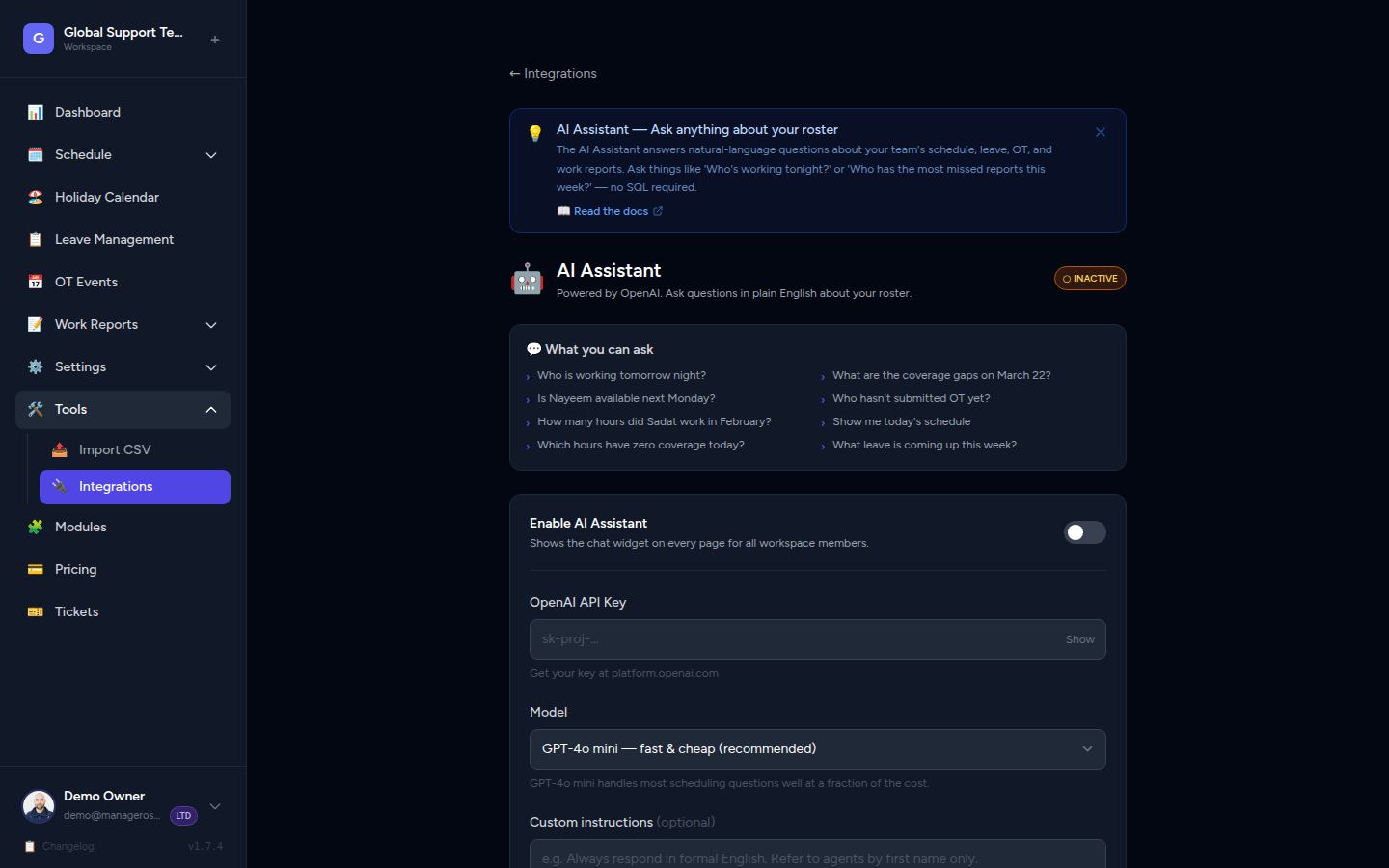
- Paste your API key into the API Key field
- Click Save
📸 Screenshot: Settings → Integrations → OpenAI section with API key field
Once saved, the AI Assistant will become available to everyone in your workspace.
Step 3 — Choose a Model
After saving your key, you'll see an option to select the AI model. Two options are available:
| Model | Best for | Cost |
|---|---|---|
| GPT-4o mini (recommended) | Everyday roster questions | Lowest cost |
| GPT-4o | Complex questions requiring more reasoning | Higher cost |
Start with GPT-4o mini
For 99% of roster questions — schedules, gaps, OT, availability — GPT-4o mini is fast, accurate, and costs a fraction of the full GPT-4o model. You can always switch later.
Select your preferred model and click Save.
📸 Screenshot: Model selector dropdown in the Integrations settings
Enabling and Disabling the AI
You can turn the AI Assistant on or off at any time without losing your API key.
- To disable: Go to Settings → Integrations → OpenAI and toggle the AI off, then save. The chat button will disappear for all workspace members.
- To re-enable: Toggle it back on and save.
This is useful if you want to pause usage (e.g. to control costs) without removing your API key.
📸 Screenshot: Enable/disable toggle for the AI Assistant
Cost Considerations
The AI is powered by OpenAI, which charges a small fee per question. Here's what to expect:
| Usage | Estimated Cost |
|---|---|
| One question | ~$0.001 – $0.005 |
| 100 questions/day | ~$0.10 – $0.50/day |
| 3,000 questions/month | ~$3 – $15/month |
These are very rough estimates — actual costs depend on how long the questions and answers are. For a typical support team, the AI costs less than a cup of coffee per month.
Charges appear on your OpenAI billing account. You can monitor usage at platform.openai.com/usage.
No surprise bills
OpenAI lets you set a monthly usage limit so you never exceed a budget. Set one at platform.openai.com/settings/organization/limits if you're concerned about runaway costs.
Revoking or Rotating the API Key
If you need to replace your API key (e.g. it was accidentally shared, or you're offboarding the person who created it), here's how:
In OpenAI
- Go to platform.openai.com/api-keys
- Find the key used for Manage Roster
- Click Revoke to immediately disable it
- Create a new key (follow Step 1 again)
In Manage Roster
- Go to Settings → Integrations → OpenAI
- Clear the old key and paste the new one
- Click Save
The AI will continue working seamlessly with the new key.
Rotate keys periodically
As a best practice, consider rotating your API key every 6–12 months — just like you would with any important password.
Troubleshooting
Team members see "AI not enabled"
The API key hasn't been saved yet, or the AI toggle is off. Complete the steps above and make sure you click Save.
"Invalid API key" error
Double-check that the key was copied in full (no missing characters). Keys start with sk-. If it still fails, revoke it and create a new one.
The AI stopped working after it was working before
The most common cause is an expired or revoked API key. Log in to platform.openai.com/api-keys and confirm the key is still active. If your OpenAI account has a billing issue or hit a usage limit, that will also block the AI.