Appearance
Getting Started: Workspace Onboarding
Welcome to Manage Roster! This guide walks you through the entire onboarding flow — from creating your account to landing on your new workspace dashboard, ready to build your team's schedule.
For new workspace owners only
This onboarding flow applies to people creating a new Manage Roster account. If you were invited to join an existing workspace, you'll skip this flow entirely — see the note at the bottom of this page.
Overview
The onboarding wizard walks you through five quick steps:
- Register — Create your Manage Roster account
- Verify your email — Confirm your address
- Create your workspace — Name it and give it a colour
- Choose your plan — Free, Pro, or LTD coupon
- Done! — You're taken straight to your dashboard
Total time: about 3 minutes.
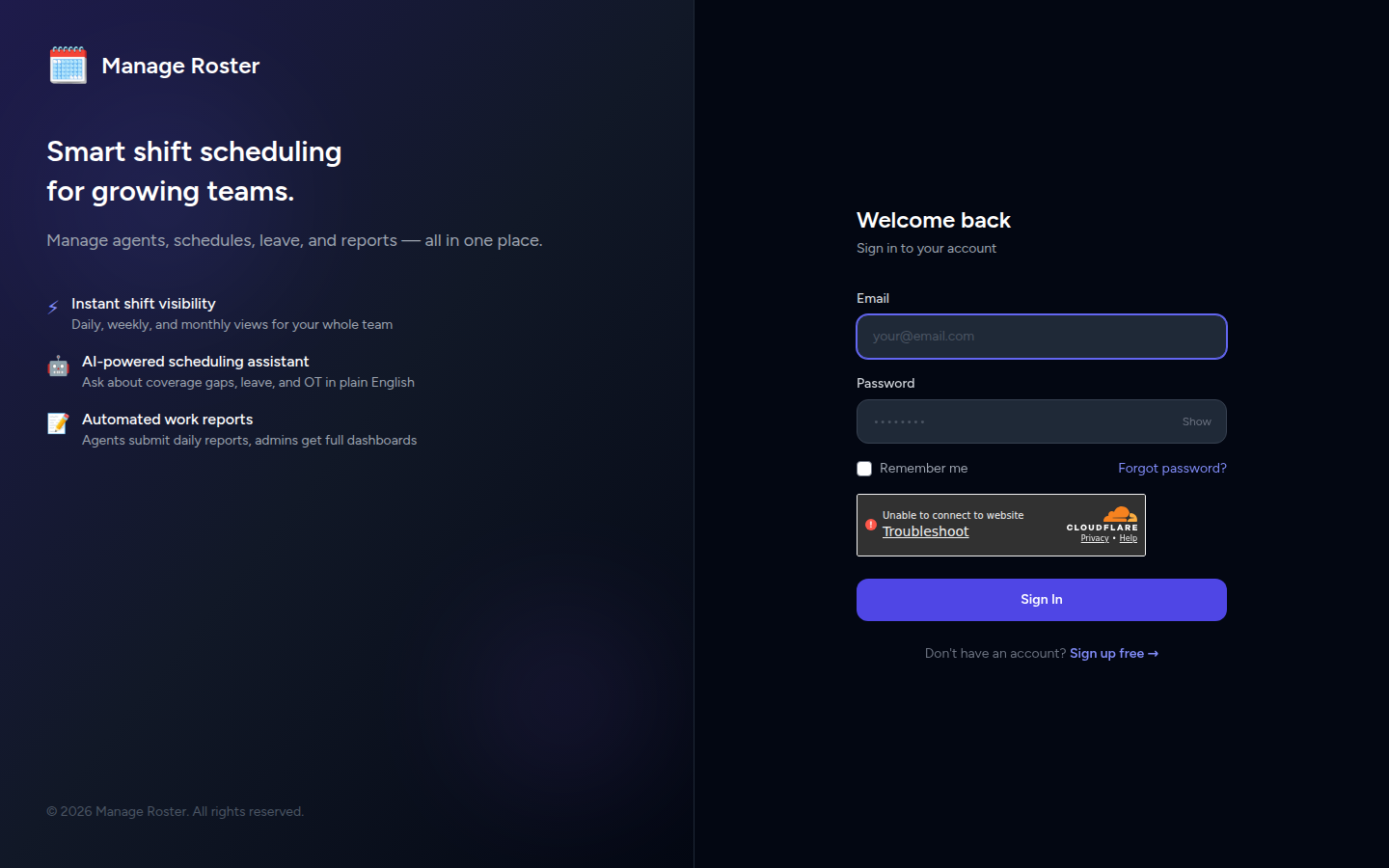
Step 1: Register at Manage Roster
Go to app.manageroster.com/register and fill in the registration form:
- Full name — Your display name across the platform
- Email address — Used for login and notifications
- Password — At least 8 characters recommended
Click Create Account to submit.
📸 Screenshot: Registration form at app.manageroster.com/register
Already have an account?
If you've been here before, head to app.manageroster.com/login instead. The registration page also has a link to sign in.
Step 2: Verify Your Email
After registering, Manage Roster will send a verification email to the address you provided.
- Open your email inbox.
- Look for an email from Manage Roster with the subject line "Verify your email address" (or similar).
- Click the Verify Email button (or link) inside the email.
- You'll be redirected back to the app, and your account will be confirmed.
📸 Screenshot: Email verification screen inside the app, prompting you to check your inbox
Check your spam folder
If the verification email doesn't arrive within a minute or two, check your Spam or Junk folder. The email is sent from the Manage Roster platform, and some mail providers may filter it initially.
Resend the verification email
If you can't find the email, look for a Resend Verification Email button on the verification screen inside the app. Click it to trigger a new email.
Step 3: Create Your Workspace
Once your email is verified, the app will prompt you to create your first workspace.
- Enter a Workspace Name — something your team will recognise (e.g. Support Team – APAC, Night Shift Ops, Tier 1 Support).
- Choose a Workspace Colour — this helps visually distinguish your workspace when you're part of multiple teams.
- Click Create Workspace (or Next) to continue.
📸 Screenshot: Workspace creation step — name field and colour picker
Choose a meaningful name
You can rename your workspace at any time from Workspace Settings, so don't worry about perfecting it now. Pick something clear and move on.
Step 4: Choose Your Plan
After creating your workspace, you'll be asked to select a subscription plan. You'll see three options:
| Plan | Best for |
|---|---|
| Free | Small teams, trial usage, work reports only |
| Pro | Full scheduling, leaves, OT, AI, and more |
| LTD | Lifetime access via a one-time coupon code |
Selecting a Plan
- Click Get Started Free to begin on the Free plan (no credit card required).
- Click Upgrade to Pro to enter your payment details and unlock all features.
- If you have a lifetime deal coupon, click Have a coupon? (or the LTD option), enter your code, and click Apply.
📸 Screenshot: Plan selection step showing Free, Pro, and LTD coupon input
Plan details
For a full breakdown of what's included in each plan, see Subscription Plans & Pricing.
You can upgrade later
If you're not sure, start with the Free plan. You can upgrade to Pro at any time from the Pricing page in the sidebar — no data is lost when you upgrade.
Step 5: Done! Welcome to Your Dashboard
After selecting a plan, onboarding is complete. You'll be redirected automatically to your workspace dashboard.
From here you can:
- Add agents to your roster → Add & Manage Agents
- Set working hours for your team → Set Working Hours
- Invite team members to give others access → Invite Team Members
- Build your schedule → Monthly Calendar
📸 Screenshot: New workspace dashboard with empty schedule and quick-start prompts
Follow the Quick Start guide
If you're not sure what to do next, the Quick Start (5 min) guide walks you through the first setup steps in the right order.
Invited Members — Skip Onboarding
If you received an invitation email from a workspace owner, the onboarding flow above does not apply to you.
When you click the link in your invitation email:
- You'll be taken to a set-password page where you choose your account password. (This link expires after 60 minutes — if it's expired, ask the owner to resend the invite.)
- Once your password is set, you'll be logged in and taken directly to the shared workspace.
- No email verification step, no workspace creation, no plan selection — you're already in.
Your access level (Manager or Member) is determined by the role the workspace owner assigned when they sent the invite.
Need an invitation?
You cannot self-register to join an existing workspace. If a colleague has a Manage Roster workspace and you need access, ask them to invite you from the Users section of their workspace.
Troubleshooting
| Issue | Solution |
|---|---|
| Verification email not received | Check spam/junk; use Resend button on the verification screen |
| Invite link expired | Ask the workspace owner to remove and re-invite you |
| Stuck on the onboarding wizard | Refresh the page; your progress is saved |
| Coupon code not accepted | Double-check for typos; coupons are case-sensitive and single-use |
Next Steps
- Invite Team Members — Share access with your team
- Subscription Plans & Pricing — Understand plan limits and how to upgrade
- Managing Workspace Members — Learn the difference between members and agents