Appearance
OT Schedule Events
How to create and manage planned overtime coverage events for holidays, peak periods, and other high-demand dates.
What Are OT Schedule Events?
An OT Schedule Event is a structured way to collect overtime availability from multiple agents for a planned period — then turn approved slots directly into schedule entries.
Instead of manually assigning OT one agent at a time, you:
- Create an event with a date range and coverage requirements.
- Grant access to eligible agents.
- Agents self-select the hours they're available to work.
- You review submissions, resolve conflicts, and approve.
- Approved slots appear on the schedule instantly — no extra steps.
Common use cases:
- Eid ul-Fitr or Eid ul-Adha holiday coverage
- End-of-month traffic spikes
- Product launches or campaigns
- Public holidays where regular coverage drops
OT Events vs. Direct OT Assignment
OT Schedule Events are for planned, coordinated coverage involving several agents over multiple days.
If you just need to mark one agent as working extra hours on a single date, use OT Assignment instead — it's faster for one-off situations.
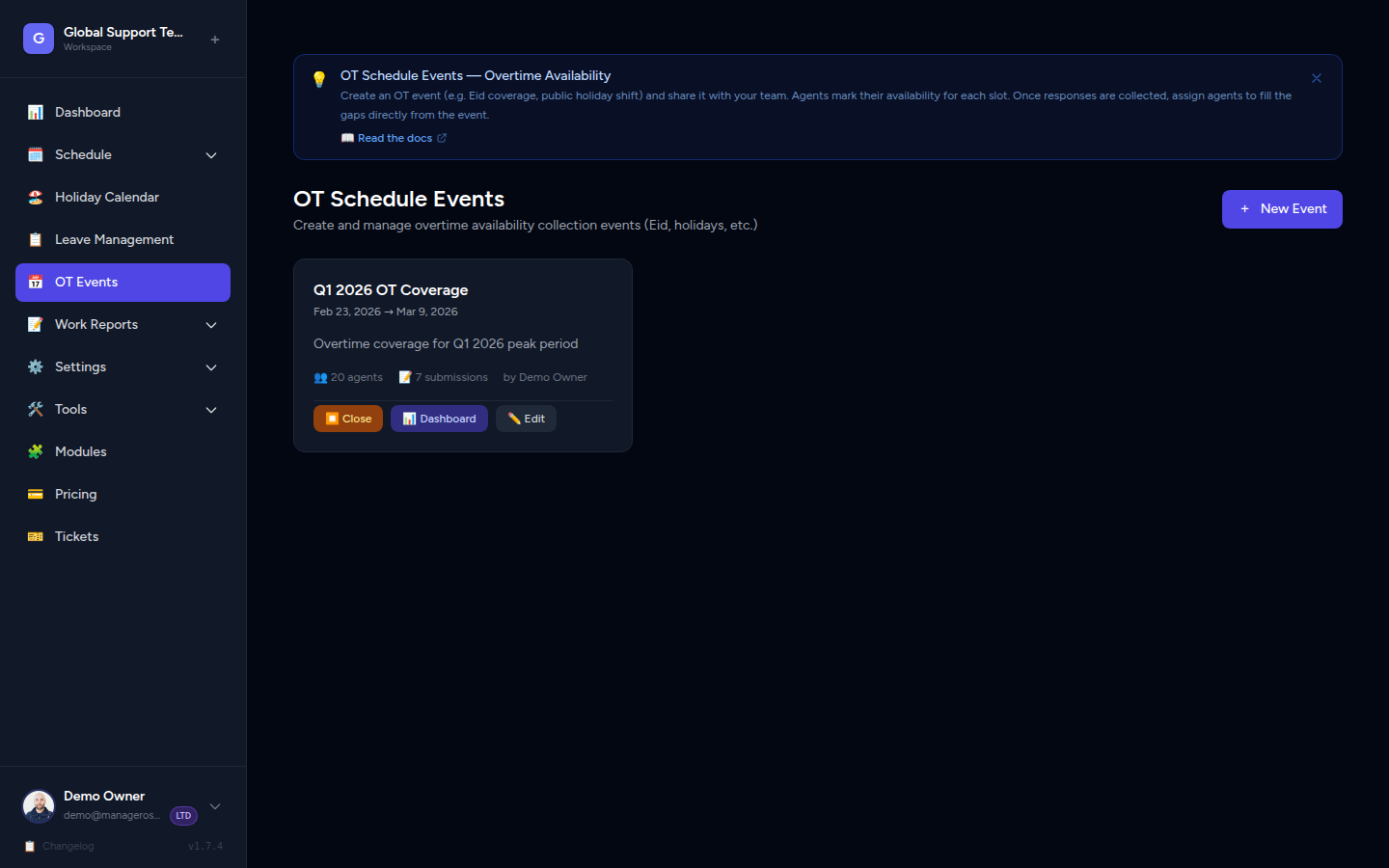
Event Lifecycle
Every OT Schedule Event moves through three stages:
| Stage | What it means |
|---|---|
| Draft | Event is being set up. Agents cannot see it yet. You can edit or delete it. |
| Active | Agents with access can view the event and submit their availability. |
| Closed | Submission period is over. No further changes can be made. |
Status changes are one-way
Once you activate an event, you cannot delete it. Once it's closed, it cannot be edited. Plan ahead before activating.
Creating an OT Schedule Event
- Open the sidebar and click OT Events.
- Click Create OT Event (top-right corner).
- Fill in the event details:
| Field | Description |
|---|---|
| Event Title | A clear, recognisable name — e.g., "Eid ul-Fitr Coverage — March 2026" |
| Description | Optional context for agents, e.g., which shifts are most critical |
| Start Date | First day of the coverage period (inclusive) |
| End Date | Last day of the coverage period (inclusive) |
- Click Save to create the event in Draft status.
📸 Screenshot: Create OT Event form with title, description, and date range fields
Name events clearly
Agents see the event title when choosing their slots. A name like "Eid Coverage — March 31–Apr 3" is far more helpful than "OT Event #4".
Granting Agents Access
Agents won't see the event unless you explicitly grant them access. This keeps your planning private until you're ready.
- Open the event from the OT Events list.
- Go to the Access tab (or panel).
- Click Grant Access and search for agents by name.
- Select the agents who should be able to submit availability.
- Click Save.
📸 Screenshot: OT Event Access panel — adding agents to the access list
Access doesn't mean approval
Granting an agent access only lets them see the event and submit their slot preferences. Their submissions still need to be reviewed and approved before anything appears on the schedule.
You can revoke access at any time — even after an agent has submitted. Their submission will remain visible to you (for your records), but the agent will no longer see the event.
Activating the Event
Once the event is set up and the right agents have access, activate it to open submissions:
- Open the event from the OT Events list.
- Click Activate.
- Confirm the prompt.
The event status changes to Active, and agents with access will now see it in their My OT Events section.
📸 Screenshot: OT Event detail page — Activate button
How Agents Submit Their Availability
Once the event is active, each agent with access sees the submission form in their account under My OT Events.
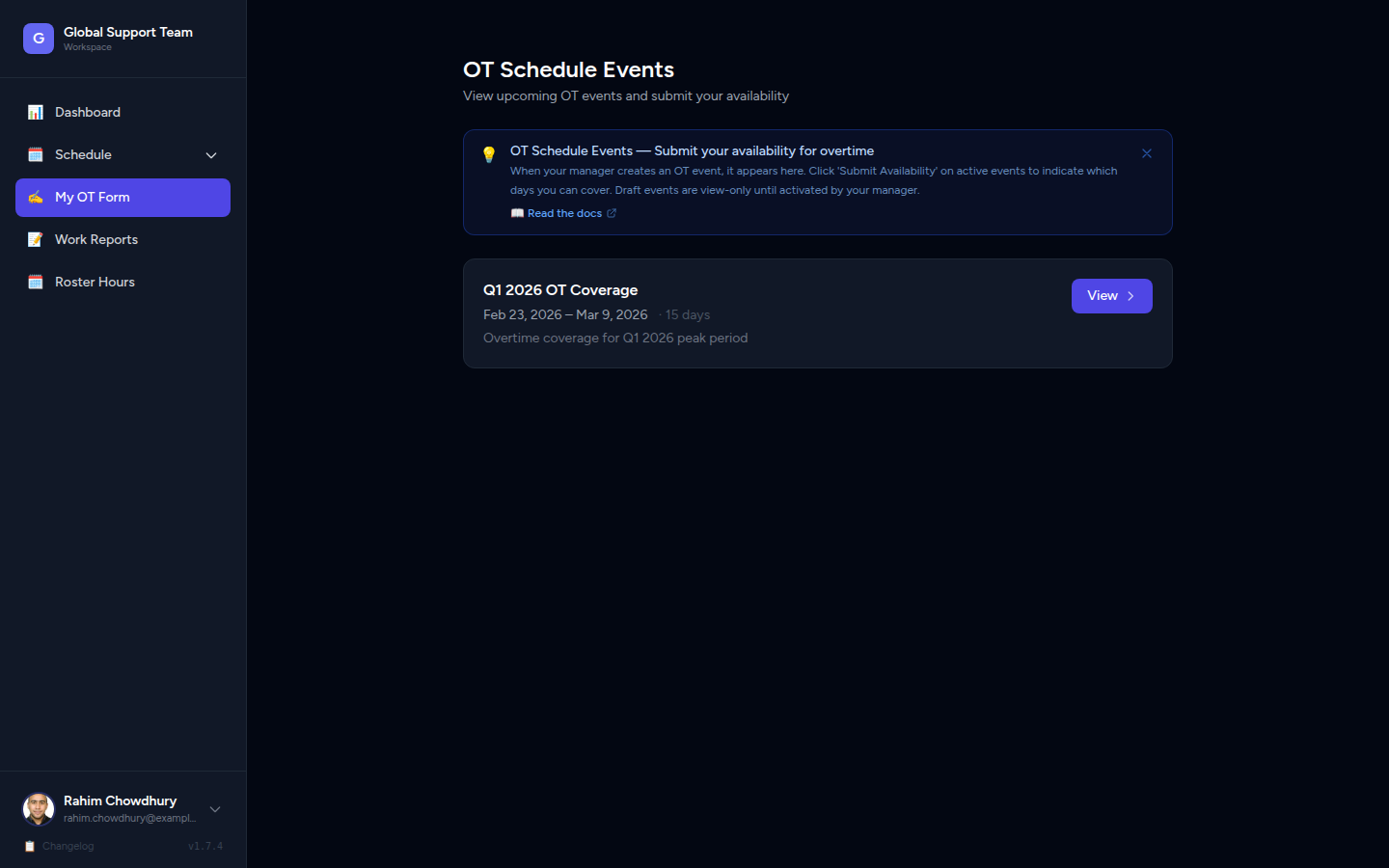
The form shows a timeline for each day in the event period, divided into 2-hour slots across the day:
- 🌙 Late Night — 12 AM to 6 AM
- ☀️ Morning–Day — 6 AM to 6 PM
- 🌃 Night — 6 PM to 12 AM
GAP slots — hours where no regular agents are currently scheduled — are highlighted in red and marked ⚡ GAP — needs coverage. The system encourages agents to fill these first before selecting other slots.
Agents can Save Draft to come back later, or Submit when their availability is complete.
Agents can edit before approval
Agents can edit and re-submit their availability as many times as they like — right up until you approve their submission. Once approved, the form becomes read-only for the agent.
📸 Screenshot: Agent submission form — timeline with GAP slots highlighted in red
Assigning Agents Manually
If you prefer to assign agents to slots yourself rather than waiting for self-selection, you can do so from the Submissions view:
- Open the event and go to Submissions.
- Review the coverage overview Gantt — this shows all submitted + approved OT across the event period.
- Open an individual agent's submission by clicking their name.
- Review their selected slots, then click Approve or Reject.
- Add optional Admin Notes (e.g., "Please cover 8 PM–10 PM instead") when rejecting — the agent will see this message.
📸 Screenshot: Submission detail page — agent's selected slots with Approve and Reject buttons
Approved slots are written to the schedule immediately — they appear in Day View, Monthly View, and the manager Dashboard without any additional steps.
One agent per slot
Each 2-hour slot can only be covered by one OT agent. If two agents submit for the same slot, you'll see a conflict indicator on the coverage Gantt. Approve only one; reject or adjust the other.
Reviewing and Resolving Conflicts
When multiple agents submit availability for the same slot, a ⚡ N conflicts badge appears on that date in the Submissions overview.
To resolve:
- Open the Submissions tab for the event.
- Dates with conflicts show a red ⚡ badge — click the date to inspect it.
- Open each conflicting agent's submission.
- Approve the agent who best fills the gap; reject or re-route the other.
📸 Screenshot: Submissions overview Gantt — conflict badge on a date with overlapping agent submissions
Viewing OT Events on the Calendar
Approved OT from events appears on the schedule exactly like any other OT:
- Day View — OT blocks show with the OT badge, with the event name as a note.
- Calendar / Monthly View — OT indicators appear on each covered day.
- Dashboard — Approved agents appear under On OT Today on the relevant dates.
📸 Screenshot: Calendar view — approved OT event slots visible across multiple days
Editing an OT Event
You can edit an event while it is in Draft or Active status:
- Go to OT Events and click on the event.
- Click Edit.
- Update the title, description, dates, or agent access.
- Click Save.
What you can and can't change after activating
After activation, you can still update the title, description, and date range. You can also grant or revoke access. However, you cannot delete the event — only close it.
Deleting an OT Event
Events can only be deleted while in Draft status (before activation):
- Go to OT Events and open the event.
- Click Delete.
- Confirm the deletion.
Once an event is Active or Closed, it cannot be deleted — only closed.
Closing an OT Event
When the submission window is over and all approvals are done:
- Open the event from OT Events.
- Click Close Event.
- Confirm.
The event moves to Closed status. No further edits or submissions are possible. All previously approved schedule rows remain on the schedule.
Example: Eid Holiday Coverage
Here's a complete walkthrough of how a team might use OT Schedule Events for Eid:
Situation: The schedule shows zero agents on several overnight slots across March 30 – April 3.
Steps:
- Create the event — Title: "Eid ul-Fitr Coverage — Mar 30–Apr 3", dates: March 30 to April 3.
- Grant access — Add 15–20 agents who are available during the holiday period.
- Activate — Agents are notified and can now submit their availability.
- Agents submit — Over the next few days, agents open the form and select the 2-hour slots they can cover. The system nudges them toward the red GAP slots first.
- Review — Open Submissions, check the coverage Gantt. Conflicts on the 12 AM–2 AM slot on April 1 — two agents submitted for it. Approve one, reject the other with a note: "Thanks — we're covered for this slot. Please cover 2 AM–4 AM if possible."
- Close — Once all critical slots are covered and approved, close the event.
- Schedule is live — All approved OT appears immediately on the Day View and Calendar for the holiday period.
Quick Reference
| Task | Where to do it |
|---|---|
| Create an OT event | OT Events → Create OT Event |
| Add agents to an event | Event → Access tab → Grant Access |
| Open submissions | Click Activate on a Draft event |
| Review agent submissions | Event → Submissions tab |
| Approve an agent's slots | Submission detail → Approve |
| Reject with feedback | Submission detail → Reject → add Admin Notes |
| Resolve slot conflicts | Submissions overview — look for ⚡ conflict badges |
| Close the event | Event detail → Close Event |
| Delete a draft event | Event detail → Delete (Draft only) |