Appearance
Sign Up & Login
How to create your account and log in to Manage Roster.
Creating Your Account
Step 1 — Go to the Sign Up Page
Open your browser and go to:
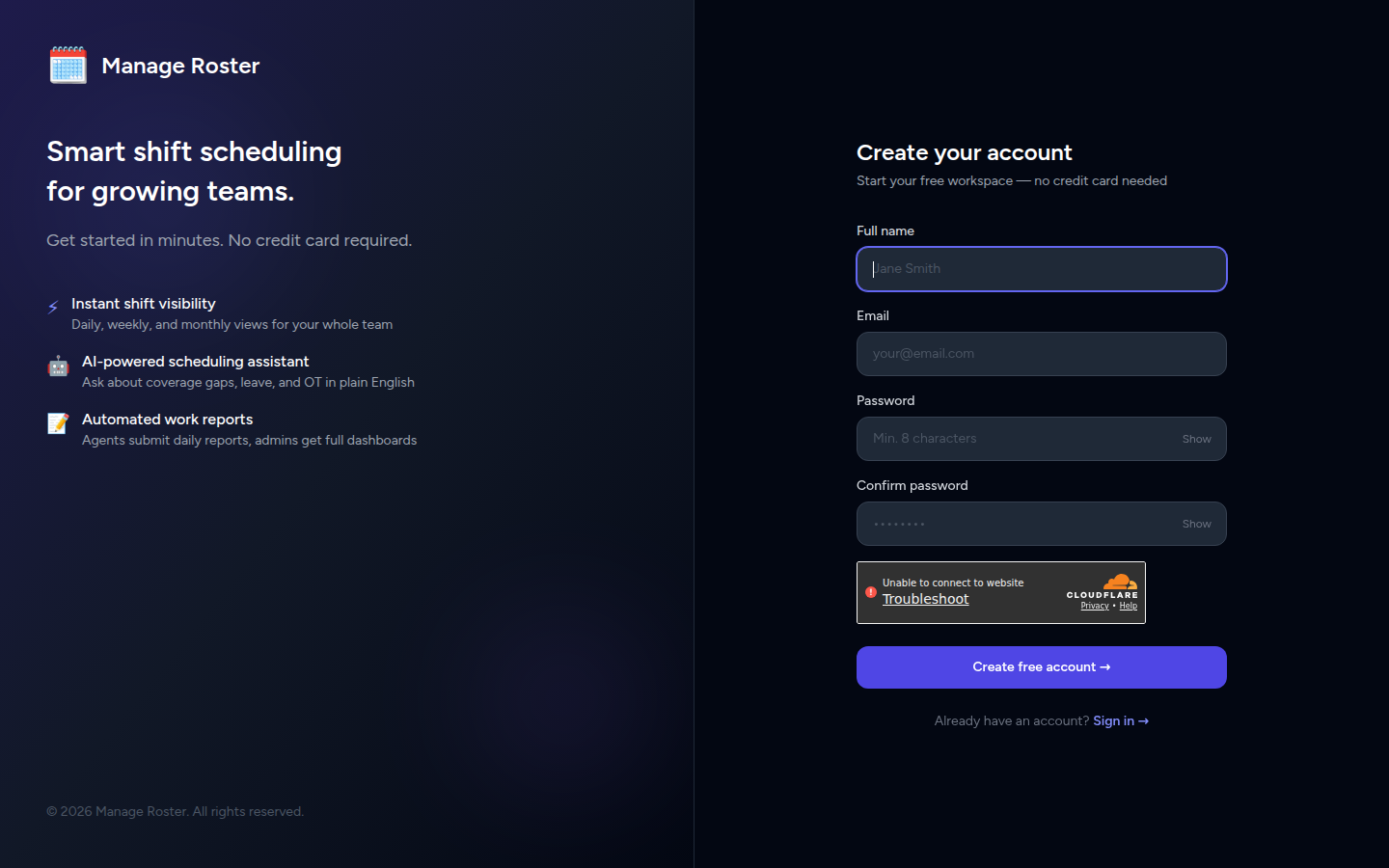
You'll see the registration form on a dark screen with the Manage Roster logo at the top.
Step 2 — Fill In Your Details
Complete all four fields:
| Field | What to enter |
|---|---|
| Full Name | Your real name (e.g. "Maria Santos") |
| A valid email address you have access to | |
| Password | At least 8 characters |
| Confirm Password | Repeat your password exactly |
📸 Screenshot: Registration form filled
Choose a strong password
Use a mix of letters, numbers, and symbols. You'll be managing your team's schedule here — keep it secure.
Step 3 — Click Register
Click the Register button. If everything looks good, you'll be logged in automatically and taken to the next step.
If you see an error
- "Email already taken" — this email is already registered. Click Already registered? to log in instead, or use a different email.
- "Passwords don't match" — re-enter both password fields carefully.
Email Verification
After registering, you may receive a verification email at the address you provided.
- Check your inbox (and your Spam/Junk folder if you don't see it)
- Open the email from Manage Roster
- Click the verification link
No email?
Some workspaces skip email verification. If you were taken straight to the app after clicking Register, you're already in — no action needed.
What You See After First Login
After signing in for the first time, you'll land on the Create a Workspace screen.
A workspace is your team's private space — it holds all your agents, schedules, and data.
- Enter a Workspace Name (e.g. your company name or team name)
- Optionally upload a Logo Image
- Pick an Accent Color
- Click Create Workspace
📸 Screenshot: Create workspace screen
Once your workspace is created, you'll be taken to the Dashboard — your home base in Manage Roster.
What's the Dashboard?
The Dashboard shows today's on-duty agents, coverage stats, upcoming leaves, and a 24-hour overview. It's the first thing you'll see every time you log in.
Logging In
Once your account exists, log in any time at:
- Enter your Email
- Enter your Password
- Optionally check Remember me to stay signed in on this device
- Click Sign In
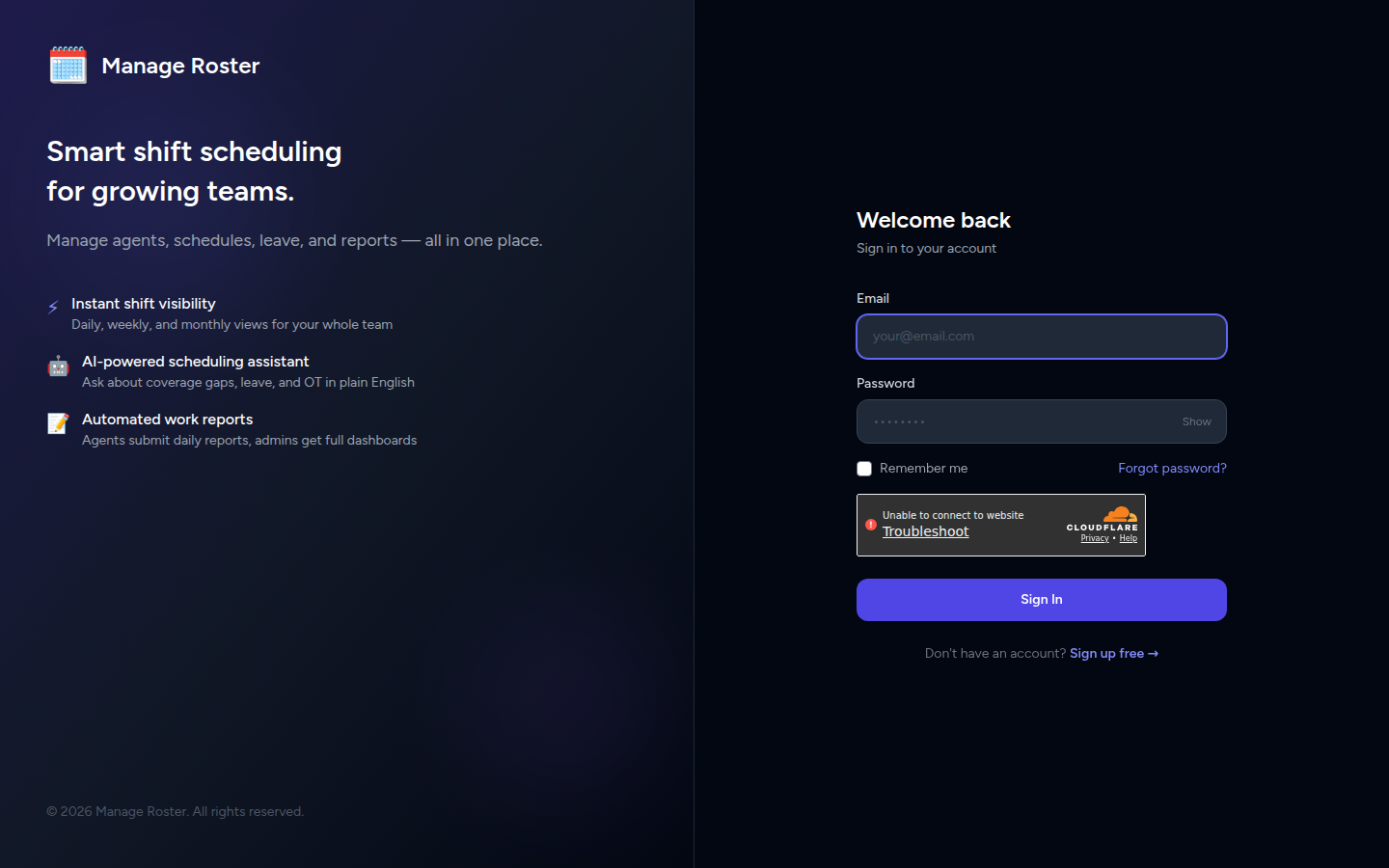
You'll land on the Dashboard of your workspace.
Forgot your password?
Password reset is handled by your workspace admin. Contact them to have your credentials reset.
Logging Out
When you're done, always log out — especially on shared or public devices.
- In the left sidebar, scroll to the bottom
- Click the Logout button
📸 Screenshot: Logout button in sidebar
You'll be returned to the login page.
Switching workspaces
If you belong to multiple workspaces, click your workspace name at the top of the sidebar and select a different workspace from the list — no need to log out.
Account Summary
| Action | Where |
|---|---|
| Sign up | app.manageroster.com/register |
| Log in | app.manageroster.com |
| Log out | Left sidebar → Logout |
| Switch workspace | Left sidebar → workspace name at the top |
Ready to set up your first schedule? Follow the Quick Start Guide.