Appearance
Missed Report Alerts
Manage Roster automatically notifies you when you forget to submit a Work Report for a day you were scheduled to work. This page explains how the alerts work, when they fire, and what you'll receive.
Who does this apply to?
Missed Report Alerts only fire for Agents who have Work Reports enabled in their workspace. You will not receive an alert if:
- You were on approved leave (casual, annual, or sick) for that day
- That day was a public holiday for your holiday group
- You were not scheduled to work (your schedule had
is_working = false)
How It Works
When the system detects a missed report, it checks all of the following conditions:
| Condition | Required to trigger alert |
|---|---|
| You were scheduled to work that day | ✅ Yes |
| No report was submitted for that date + template | ✅ Yes |
| You are not on approved leave | ✅ Yes (leave = no alert) |
| It is not a public holiday for your holiday group | ✅ Yes (holiday = no alert) |
| An alert has not already been sent for this date | ✅ Yes (one alert per date) |
If all conditions are met, the system schedules your alert to fire 3 hours after your shift ends.
When the Alert Fires
The alert timing is tied to your individual shift end time — not a fixed midnight or daily batch.
| Shift | Alert fires at |
|---|---|
| 9:00 am – 5:00 pm | 8:00 pm |
| 6:00 am – 2:00 pm | 5:00 pm |
| 9:00 pm – 4:00 am (next day) | 7:00 am (next day) |
| Any other shift | 3 hours after your shift end time |
Why 3 hours after your shift?
This gives you time to wrap up and submit after your shift ends — but still reminds you the same evening (or morning, for night shifts) while the day is fresh.
Where You Get Notified
Depending on your workspace's alert preference, you may receive one or more of the following:
1. In-App Banner
A yellow warning banner appears at the top of every page inside Manage Roster after you log in.
📸 Screenshot: Yellow banner — "⚠️ You missed your [Template] report for [Date]. Submit now →"
- The banner reads: "⚠️ You missed your [Template] report for [Date]. Submit now →"
- Clicking Submit now → takes you directly to the report form pre-filled with that date.
- If you have multiple missed dates, you will see one banner per missed date — they stack.
- Each banner has a × Dismiss button in the top-right corner.
Dismissing a banner is permanent
Clicking × hides that specific alert forever. It will not reappear on your next login, and the system will not re-send the notification. Dismissing does not affect your ability to submit — you can still submit a late report normally after dismissing the banner.
2. Slack Direct Message
If your workspace has Slack connected and your admin has entered your Slack Member ID in your agent profile, you'll receive a DM in Slack.
📸 Screenshot: Slack DM — Block Kit card with "Submit Now" button for the missed date
The Slack message includes:
- Which report template and date you missed
- A Submit Now button that links directly to the report form
Slack DMs require admin setup
Your admin must:
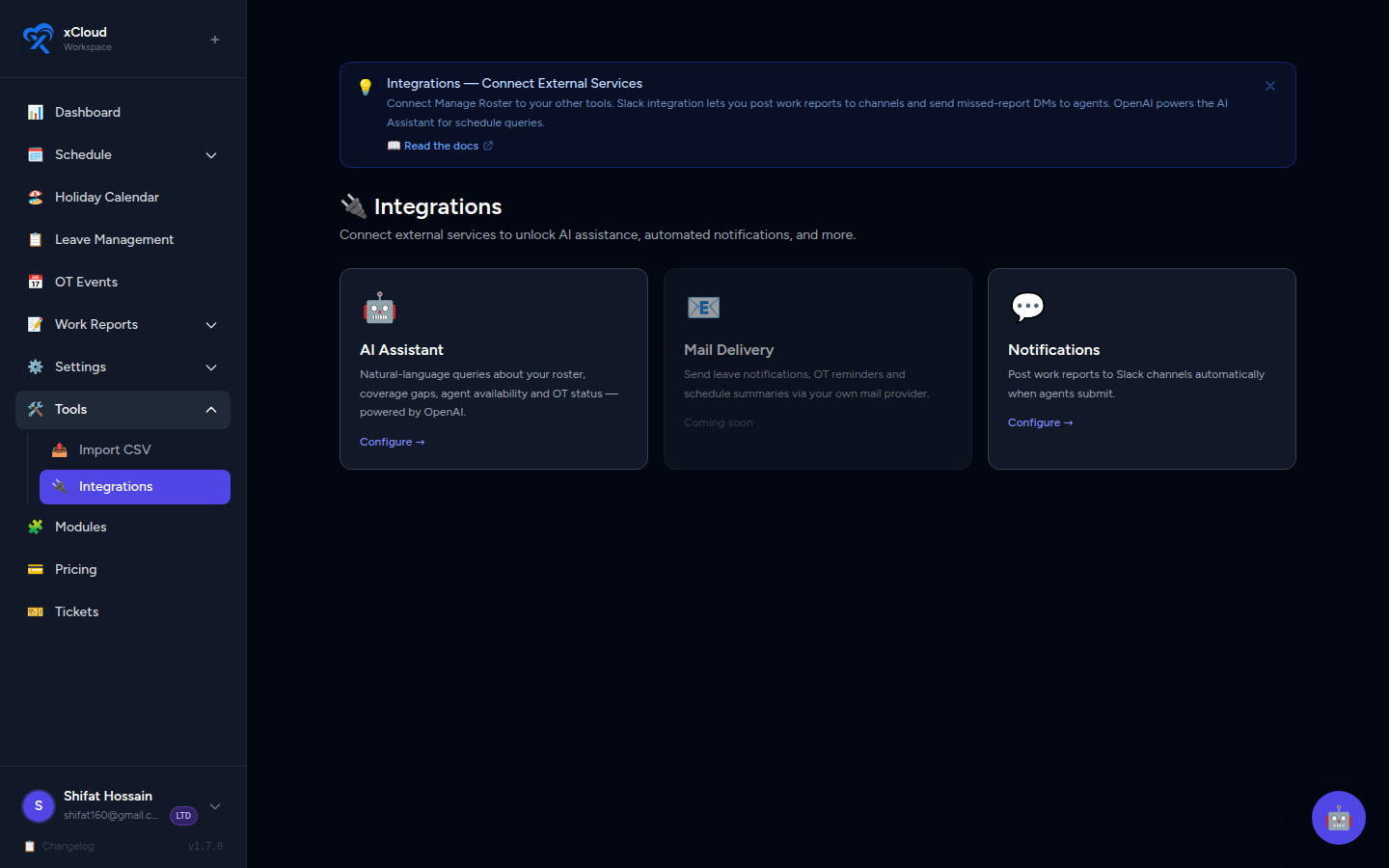
- Connect Slack in Integrations → Slack
- Add your Slack Member ID to your agent profile
- Set the alert preference to Slack DM or Both
If you're not receiving Slack alerts, ask your admin to verify these steps.
3. Email
You receive an email reminder to the address linked to your Manage Roster account.
📸 Screenshot: Email with subject "Reminder: You missed your [Template] report for [Date]"
- Subject:
Reminder: You missed your [Template] report for [Date] - The email body includes a direct link to open the report submission form.
Email alerts are sent when the admin has set the alert preference to Email or Both.
Alert Preference (Admin Controlled)
Your admin chooses which channels are used for missed report alerts. This setting is found at:
Integrations → Slack → Alert Notifications card
| Preference | What you receive |
|---|---|
| 💬 Slack DM (default) | In-app banner + Slack DM |
| In-app banner + Email | |
| 💬+✉️ Both | In-app banner + Slack DM + Email |
The in-app banner always shows
Regardless of the admin's channel preference, the in-app banner always appears if you have a missed report. The preference only controls whether a Slack DM and/or email is also sent.
Key Rules
- One alert per missed date — the system will not send a second alert for the same date, even if you dismiss the banner or ignore the Slack/email notification.
- Submitting after the alert is fine — if you submit a late report after the alert has fired, the submission is recorded normally. Late submissions are better than none.
- Dismissing the banner does not block submission — you can always navigate to Work Reports → My Reports and submit for any missed date.
- Leave and holidays are excluded — if your schedule was updated to reflect approved leave or a public holiday, no alert will fire for those days.
Frequently Asked Questions
I got an alert for a day I didn't actually work. What should I do?
Contact your admin. This usually means your working-day schedule was not updated correctly. Ask them to set that day's is_working flag to false, or log the leave entry, so future alerts are suppressed correctly.
I dismissed the banner by mistake. Can I still submit?
Yes. Dismissing only hides the banner. You can still go to Work Reports → My Reports, click New Report, and submit for the missed date. Or use the Weekly Calendar strip at the top of My Reports to click directly on the missed day.
Why haven't I received a Slack DM even though Slack is connected?
Check with your admin that your Slack Member ID is entered in your agent profile, and that the alert preference is set to Slack DM or Both. Also confirm you have not muted or blocked the Manage Roster bot in Slack.
Can I turn off missed report alerts?
Alert settings are controlled by your admin. If you'd like to disable or change the notification channel, raise it with your workspace admin.
I submitted my report but still got an alert. Is that a bug?
This can happen if you submitted your report after the alert was already queued (i.e., within the 3-hour window after your shift ended). The alert fires based on a scheduled job — if your submission arrived just as the job ran, you may receive the notification anyway. Your submission is still recorded correctly; no further action is needed.
Related
- Work Reports — Agent Guide — How to submit, edit, and track your reports
- Work Reports — Admin Guide — How admins enable Work Reports and manage agent submissions
- Slack Integration — Connecting Slack to your workspace